Building an IAM Lab: Provisioning, Access Reviews, and GPO from Scratch
IAM sits at the intersection of security, compliance, and day-to-day IT operations. It’s what controls who gets access, to what, and for how long. One misconfigured account, one stale user that never got deprovisioned, one group with permissions broader than they should be, and you have a problem that no firewall catches. It’s one of those disciplines that looks straightforward on paper until you’re actually doing it.
Provisioning a user isn’t just running New-ADUser. It’s OU placement, group assignment, password policy, audit logging, and making sure the account is actually ready before the person’s first day. This lab covers all of it, built end to end on Citadel (my Proxmox security node) with real scripts, real logs, and real GPOs.
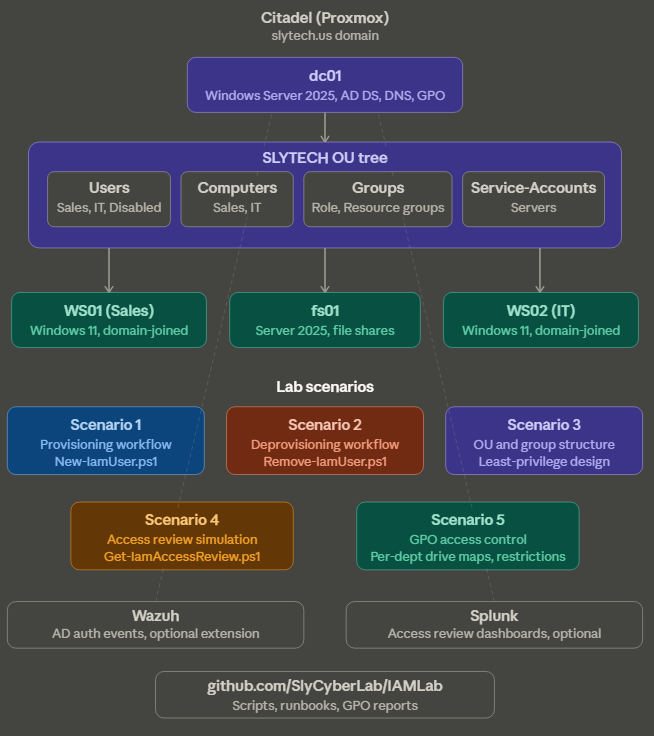
Five scenarios: provisioning and deprovisioning workflows in PowerShell, an OU and group structure built around least-privilege, a quarterly access review simulation with output you could hand to a manager, and GPO-based access control scoped per department.
Why PowerShell and not the GUI
You could do all of this through Active Directory Users and Computers. Click through the wizard, assign groups manually, move the account to the right OU by hand. It works. It also doesn’t scale, doesn’t log anything, and breaks the second someone skips a step.
The scripts in this lab do the same work in seconds, catch errors before they become problems, and write a timestamped log entry for every action taken. That log is the difference between knowing what happened and guessing.
Lab infrastructure
Everything runs on Citadel, my Proxmox cluster. No new VMs were spun up for this lab. I repurposed what was already there:
dc01(Windows Server 2025): AD DS, DNS, GPO hubWS01(Windows 11): domain-joined endpoint, Sales departmentWS02(Windows 11): domain-joined endpoint, IT departmentfs01(Windows Server 2025): file server, department shares
Wazuh and Splunk stayed running in the background. Pointing Wazuh at dc01 to capture AD auth events and GPO changes would be a natural extension of this lab if you want SIEM coverage on top of the IAM scenarios.
OU and group structure
Before touching a single user account, the structure needs to be right. A flat AD with everyone dumped in the default Users container is not a lab, it’s a mess.
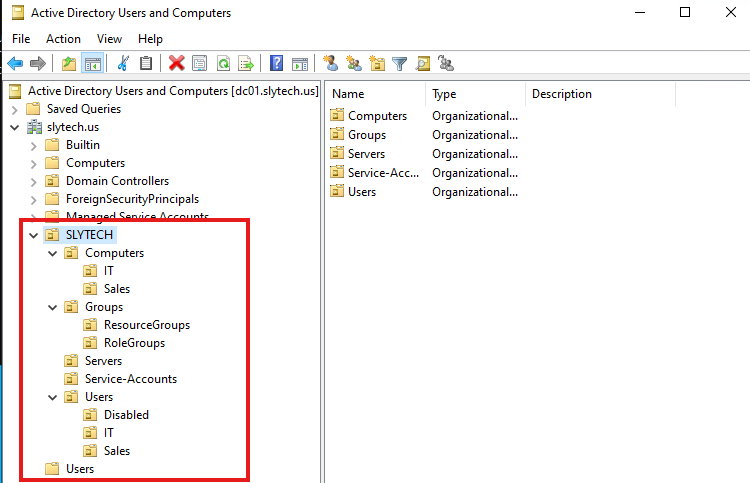
The SLYTECH OU is the root of everything. Under it:
Users > Sales: all Sales department user accountsUsers > IT: all IT department user accountsUsers > Disabled: offboarded accounts in 30-day retentionComputers > SalesandComputers > IT: workstations scoped for GPO applicationServers: server computer accounts (fs01 lives here)Groups > RoleGroups: who you areGroups > ResourceGroups: what you can access
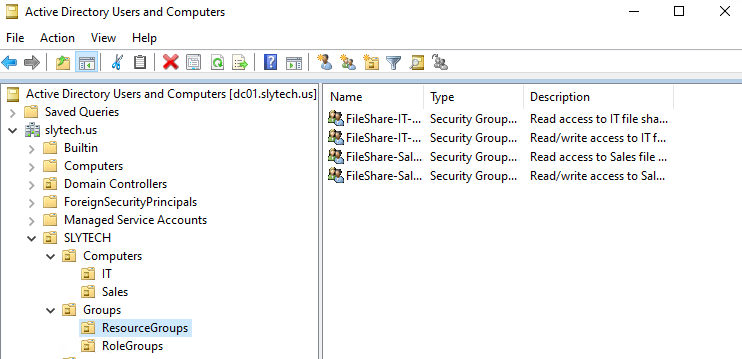
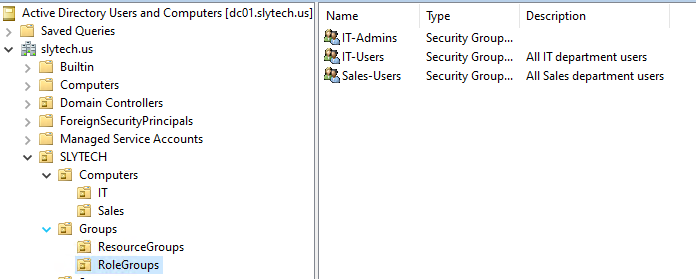
The separation between role groups and resource groups is the design decision that matters most here. Most small AD environments skip it and end up with a single group per department that controls both identity and access. That works until you need to audit who has access to what, or until someone transfers departments and you have to figure out what to strip.
Role groups answer “who is this person.” Sales-Users, IT-Users, IT-Admins. These drive OU placement and GPO application. Resource groups answer “what can this person touch.” FileShare-Sales-RW, FileShare-IT-Read, and so on. These get assigned to NTFS ACLs on the file server. When someone leaves, you strip everything. When someone transfers, you swap the role group and adjust resource groups without touching the underlying share permissions.
The PowerShell to build the full structure:
# Department user OUs
New-ADOrganizationalUnit -Name "Sales" -Path "OU=Users,OU=SLYTECH,DC=slytech,DC=us"
New-ADOrganizationalUnit -Name "IT" -Path "OU=Users,OU=SLYTECH,DC=slytech,DC=us"
New-ADOrganizationalUnit -Name "Disabled" -Path "OU=Users,OU=SLYTECH,DC=slytech,DC=us"

# Role groups
New-ADGroup -Name "Sales-Users" -GroupScope Global -GroupCategory Security -Path "OU=RoleGroups,OU=Groups,OU=SLYTECH,DC=slytech,DC=us"
New-ADGroup -Name "IT-Users" -GroupScope Global -GroupCategory Security -Path "OU=RoleGroups,OU=Groups,OU=SLYTECH,DC=slytech,DC=us"
New-ADGroup -Name "IT-Admins" -GroupScope Global -GroupCategory Security -Path "OU=RoleGroups,OU=Groups,OU=SLYTECH,DC=slytech,DC=us"

# Resource groups
New-ADGroup -Name "FileShare-Sales-RW" -GroupScope Global -GroupCategory Security -Path "OU=ResourceGroups,OU=Groups,OU=SLYTECH,DC=slytech,DC=us"
New-ADGroup -Name "FileShare-Sales-Read" -GroupScope Global -GroupCategory Security -Path "OU=ResourceGroups,OU=Groups,OU=SLYTECH,DC=slytech,DC=us"
New-ADGroup -Name "FileShare-IT-RW" -GroupScope Global -GroupCategory Security -Path "OU=ResourceGroups,OU=Groups,OU=SLYTECH,DC=slytech,DC=us"
New-ADGroup -Name "FileShare-IT-Read" -GroupScope Global -GroupCategory Security -Path "OU=ResourceGroups,OU=Groups,OU=SLYTECH,DC=slytech,DC=us"
Scenario 1: Provisioning workflow
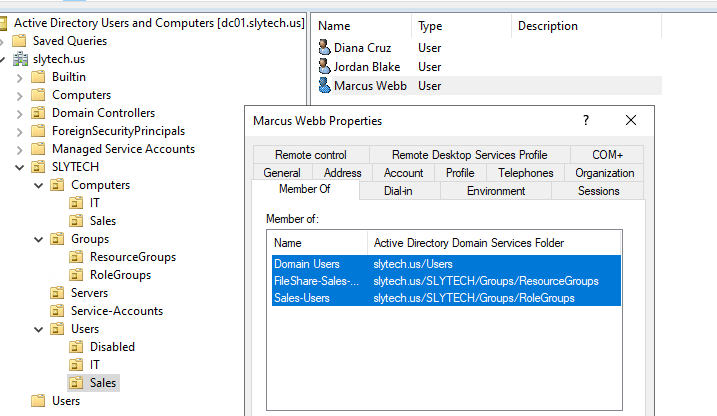
The provisioning script takes a request (name, department, title, manager, ticket number) and handles everything: username generation, OU placement, role group assignment, resource group assignment, temp password with forced change at first logon, and a timestamped audit log entry for every action.
.\New-IamUser.ps1 -FirstName "Marcus" -LastName "Webb" -Department "Sales" -Title "Account Executive" -Manager "Administrator" -TicketNumber "REQ-1001"
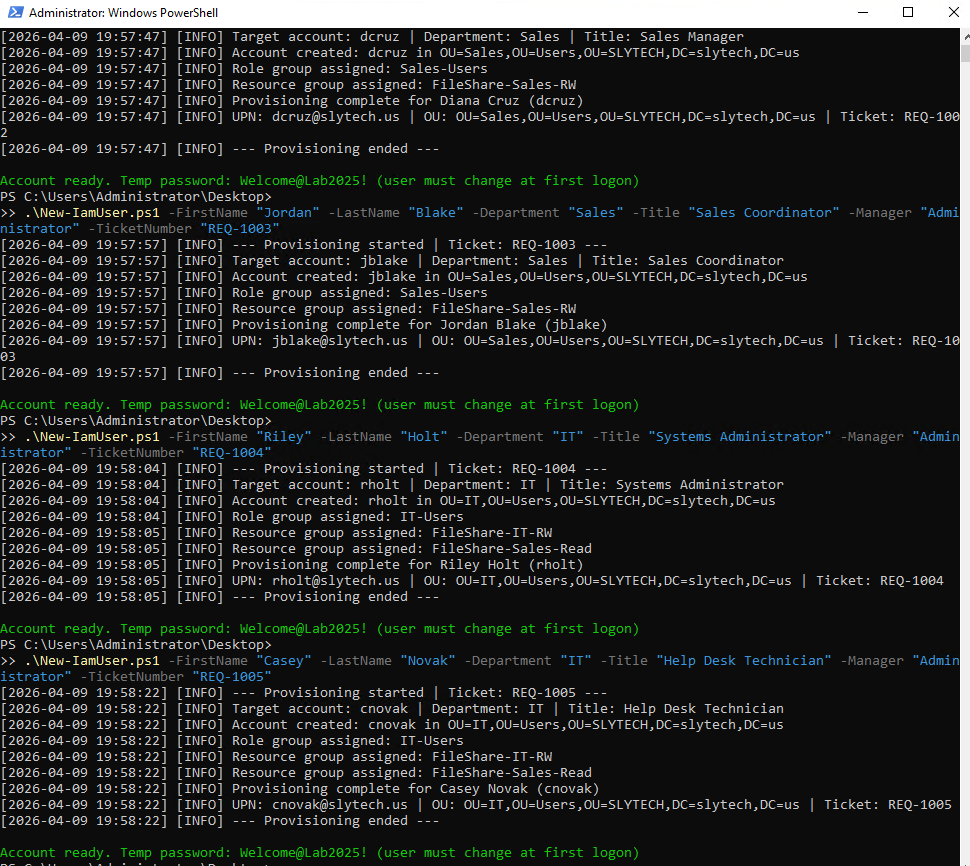
The script catches duplicate accounts before attempting to create them, validates that the manager account exists, and logs every success and failure with a timestamp. Without the log, you have no audit trail. Every IAM action needs one.
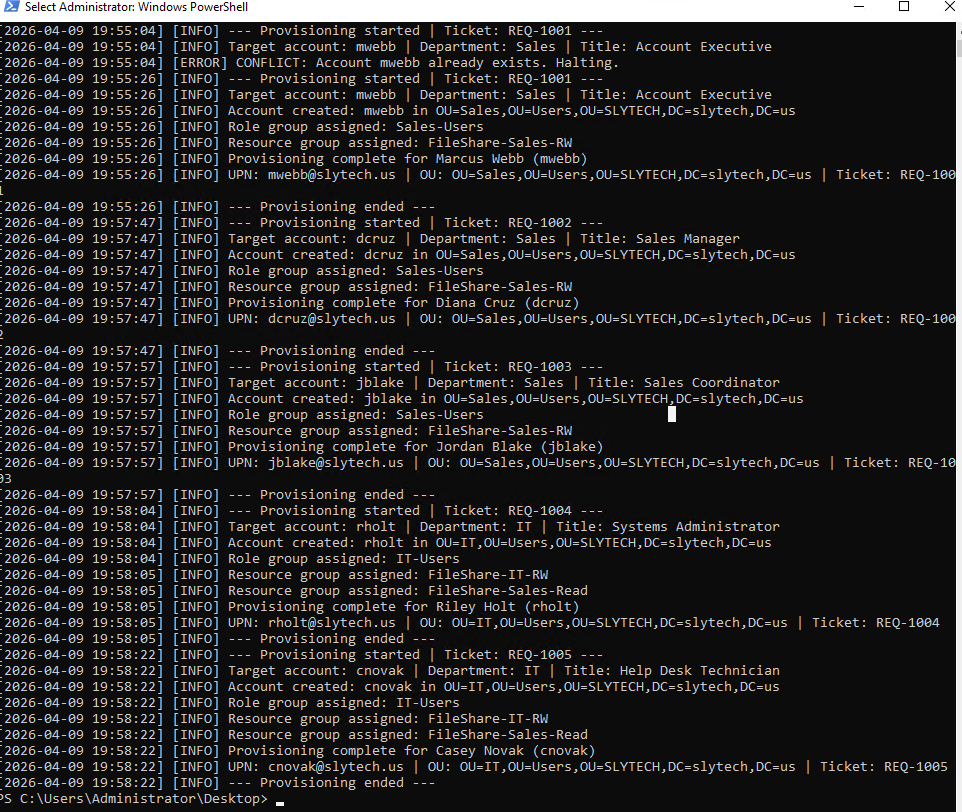
The log shows the full history including the failed attempts from the password policy issue and the duplicate account detection. In production that log goes to your ITSM system or your SIEM. Here it lives at C:\IAMLab\Logs\provisioning.log.
IT users get a slightly different resource group assignment by design. Sales users get FileShare-Sales-RW. IT users get FileShare-IT-RW and FileShare-Sales-Read. IT needs read access to the Sales share for support work. That’s a deliberate least-privilege decision baked into the script’s configuration, not a manual step.
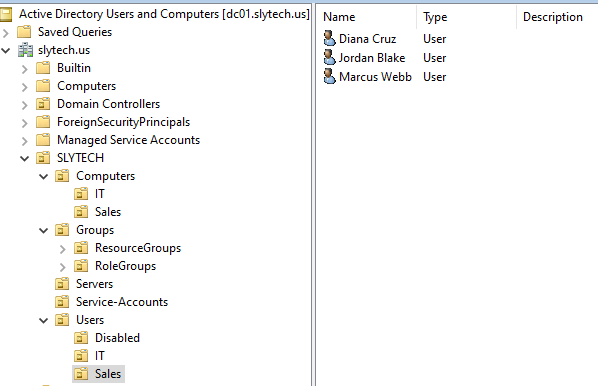
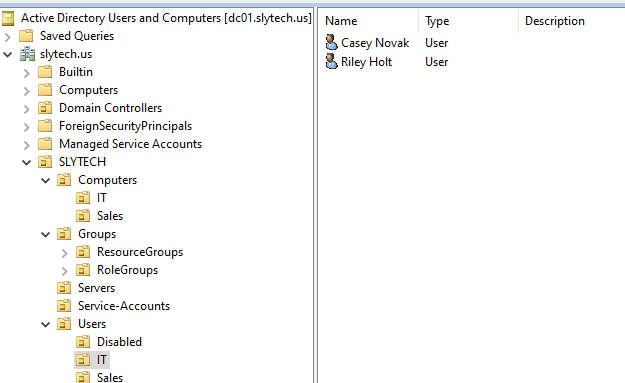
On M365 licensing: In a production environment, Step 6 of any provisioning workflow is license assignment via Microsoft Graph. The on-prem account creation above is only half the picture:
# Connect to Microsoft Graph (requires User.ReadWrite.All)
Connect-MgGraph -Scopes "User.ReadWrite.All", "Directory.ReadWrite.All"

# Assign license based on department and role
Set-MgUserLicense -UserId "mwebb@slytech.us" `
    -AddLicenses @{SkuId = "<M365-License-SkuId>"} `
    -RemoveLicenses @()
License SKU is determined by department and role. Standard users get Business Premium, elevated roles get E3 or E5. This step runs after AD provisioning, before the user’s first day. Lab scope covers on-prem AD only, but skipping this step in a real environment means your new hire shows up on day one with no email.
Scenario 2: Deprovisioning workflow
Offboarding is where IAM programs fall apart in practice. Someone gives notice, IT gets a ticket three days later, and by the time the account is disabled the person has already left with two weeks of access they shouldn’t have had.
The deprovisioning script runs in order: disable the account, strip all group memberships, move to the Disabled OU, stamp the account description with the offboarding date, ticket number, and approver. The 30-day retention period is documented with a scheduled delete date.
.\Remove-IamUser.ps1 -SamAccountName "jblake" -TicketNumber "REQ-2001" -ApprovedBy "Administrator"
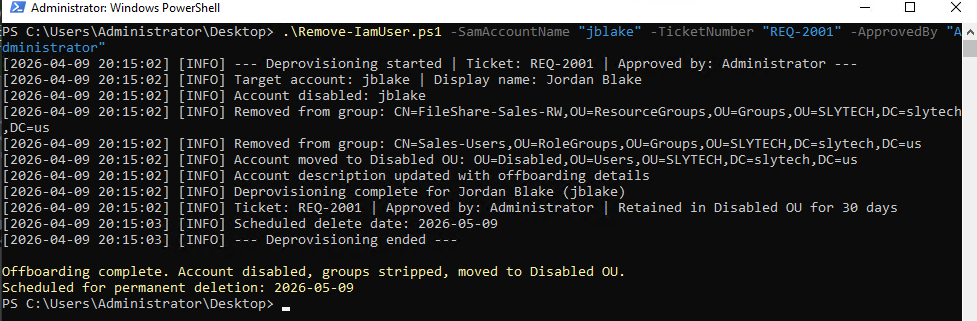
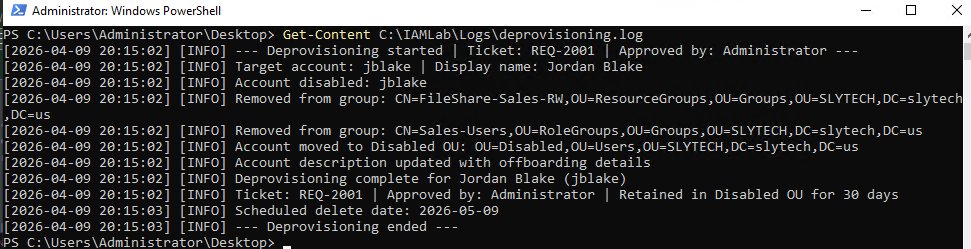
The log tells the full story. Account disabled. Both groups stripped within the same second. Moved to Disabled OU. Description updated. Scheduled delete date of 2026-05-09 documented.
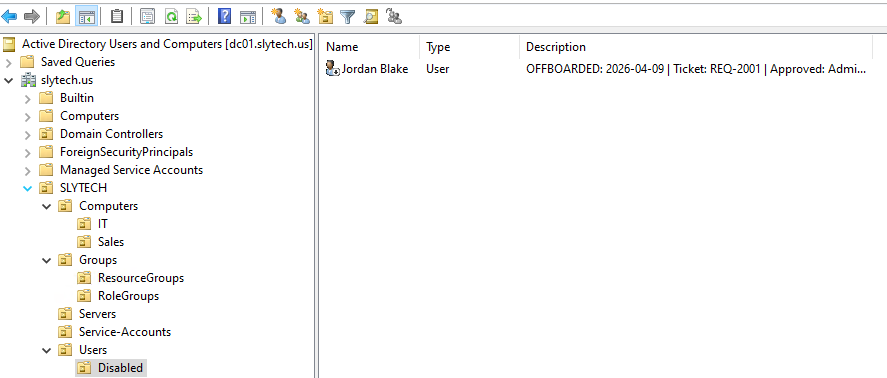
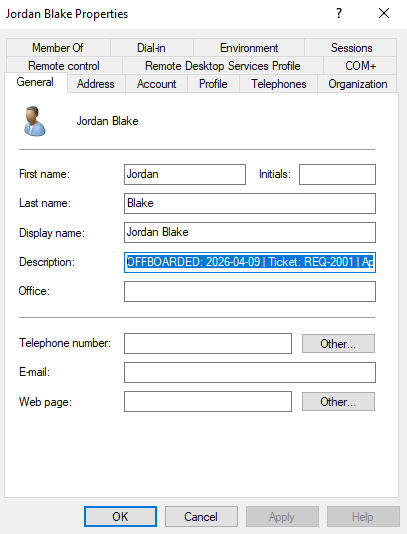
The description field reads: OFFBOARDED: 2026-04-09 | Ticket: REQ-2001 | Approved: Administrator. That description survives in AD until the account is deleted. Any admin who pulls up that account later knows exactly what happened and who signed off on it.
Scenario 3: Quarterly access review
Access reviews are the part of IAM that feels like paperwork until your auditor asks for evidence of one. The script pulls every user in the domain with their group memberships, last logon date, account status, and flags anyone who hasn’t logged in within the threshold or has never logged in at all.
.\Get-IamAccessReview.ps1 -StaleDays 30
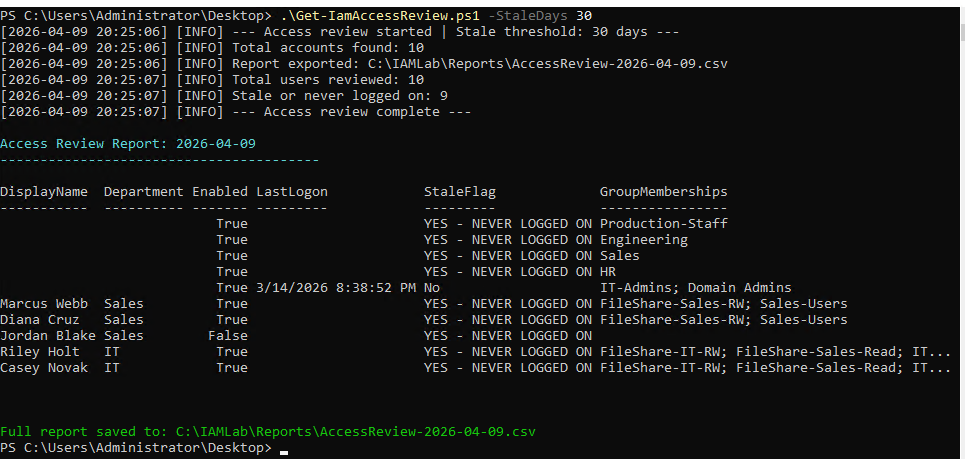
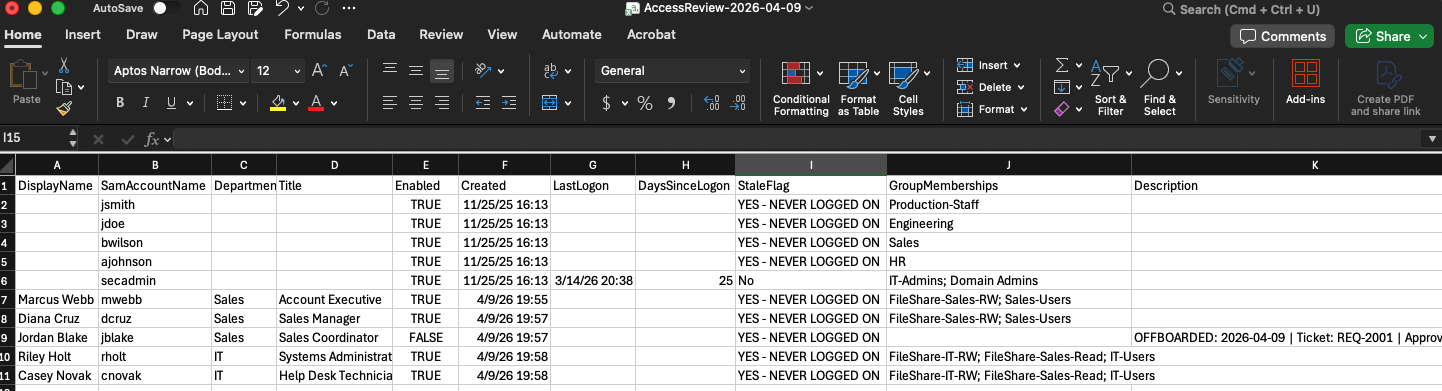
Nine out of ten accounts flagged as stale or never logged on. The newly provisioned lab users have never logged in, which is expected. But look at the four accounts with no DisplayName at the top of the report: orphaned accounts from previous lab work with no owner, still enabled, assigned to groups like Production-Staff and Engineering. That’s not noise. That’s exactly what a quarterly access review is supposed to catch. Those accounts should have been cleaned up long before this report ran.
Jordan Blake shows up correctly: disabled, no group memberships, never logged on. The deprovisioning scenario proving itself in the access review output without any extra setup.
In a real review process, that output goes to a manager. Each account gets one of three outcomes: confirmed active (retain), no response (disable pending review), or confirmed inactive (deprovision). The CSV becomes the evidence artifact.
Scenario 4: GPO-based access control
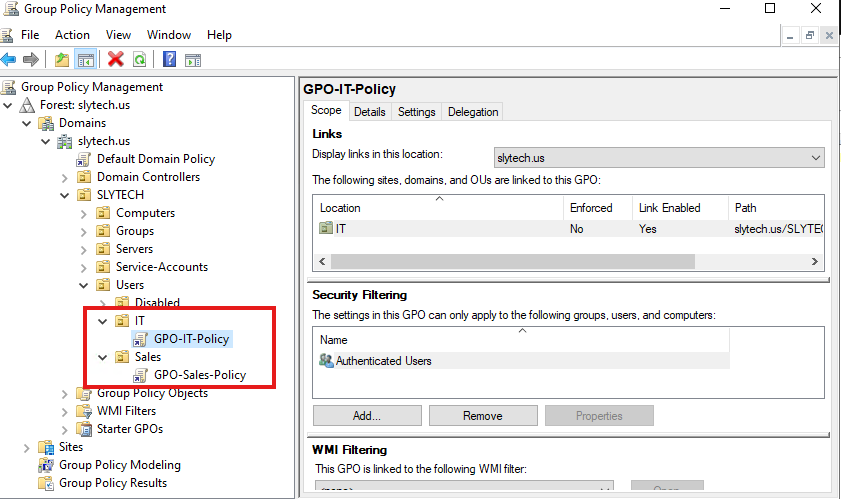
Two GPOs, two departments, different policy scopes. The design reflects least-privilege at the policy level, not just the permission level.
GPO-Sales-Policy applies to OU=Sales,OU=Users,OU=SLYTECH:
- Drive Maps: S: mapped to
\\FS01\Sales, reconnect enabled - Control Panel: prohibited
- Command Prompt: prohibited
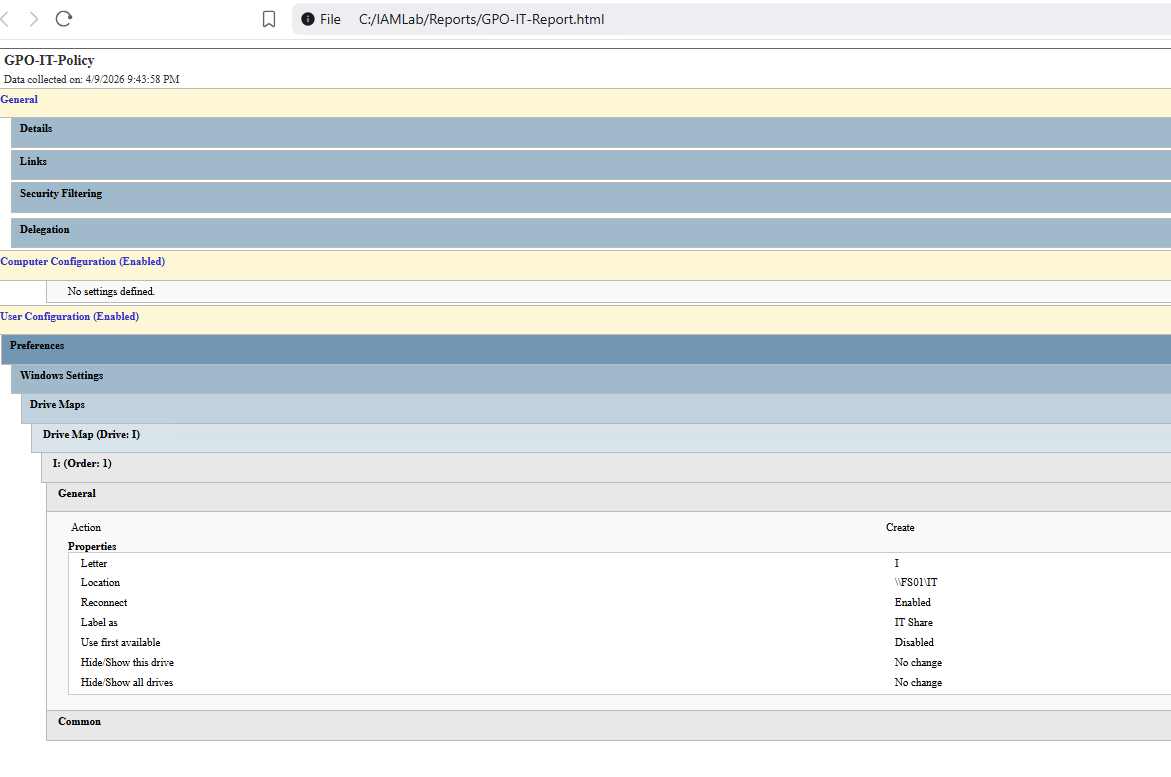
GPO-IT-Policy applies to OU=IT,OU=Users,OU=SLYTECH:
- Drive Maps: I: mapped to
\\FS01\IT, reconnect enabled - No restrictions
IT users get the tools they need. Sales users get their share mapped and nothing else. The contrast between the two policies is intentional.
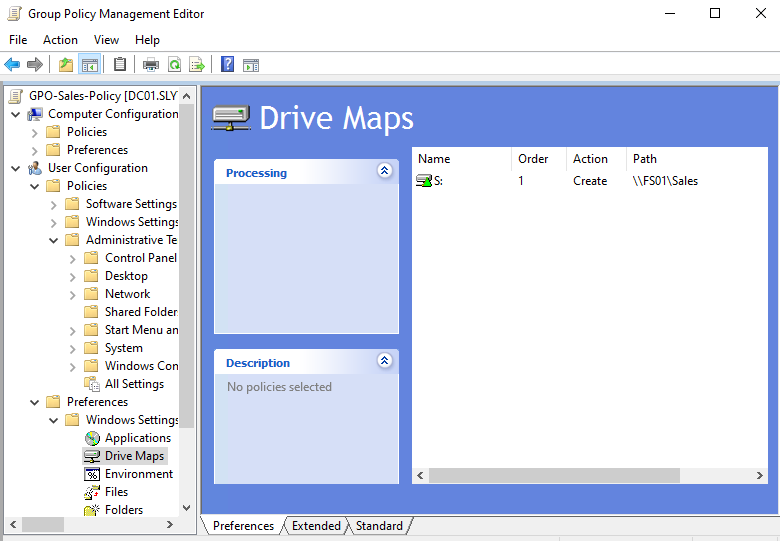
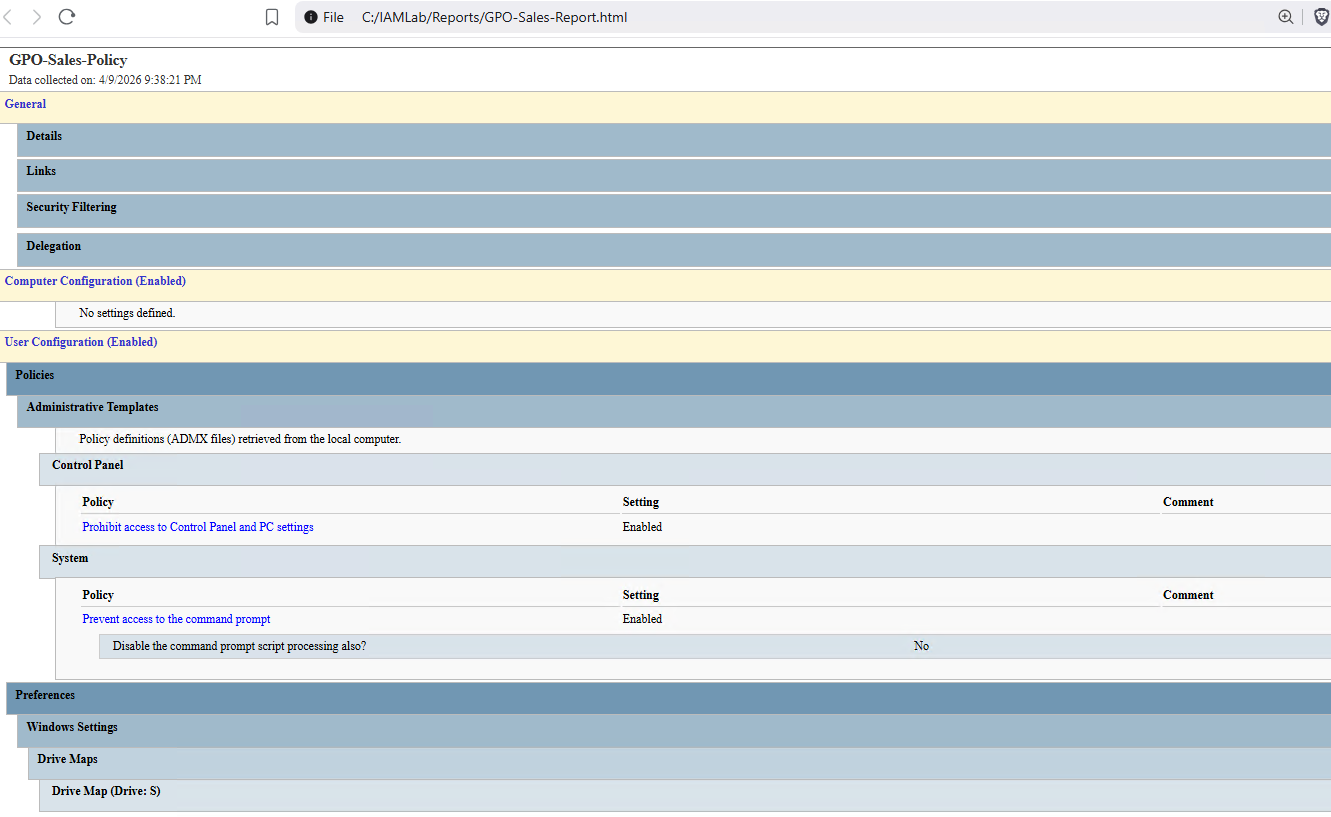
That HTML report is generated directly from the GPO:
Get-GPOReport -Name "GPO-Sales-Policy" -ReportType Html -Path "C:\IAMLab\Reports\GPO-Sales-Report.html"
Clean, readable, exportable. The kind of output you attach to a change ticket or hand to an auditor.
The file share permissions back the GPO up at the NTFS level. Share permissions are set to Everyone full access. NTFS locks it down by group:
FileShare-Sales-RW: Modify on the Sales shareFileShare-Sales-Read: ReadAndExecute on the Sales shareFileShare-IT-RW: Modify on the IT shareFileShare-IT-Read: ReadAndExecute on the IT share
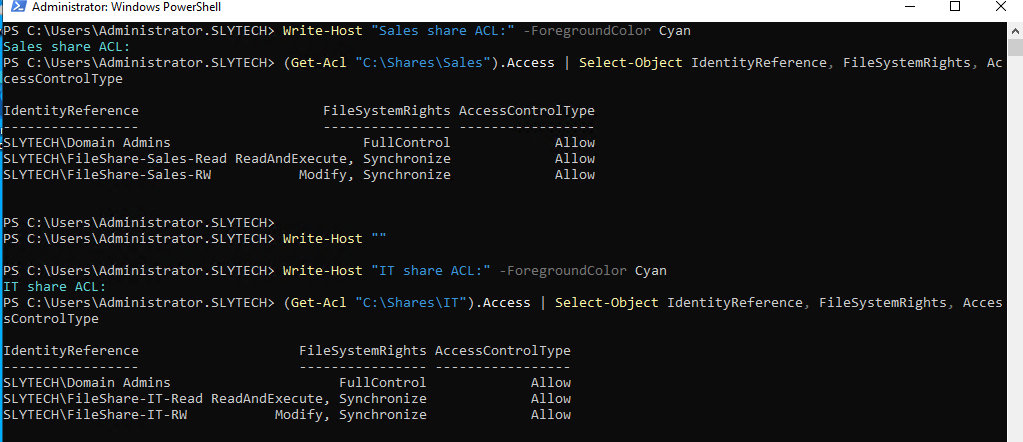
Share permissions wide open, NTFS explicit. The share is the door. NTFS is the lock.
Wrapping up
All scripts and runbooks for this lab are published on GitHub at github.com/SlyCyberLab/iam-homelab. The repo includes the three PowerShell scripts, written runbooks for each scenario, and the GPO HTML reports. If you’re building something similar or want to adapt any of the scripts for your own domain, everything is there.
The lab covers what IAM looks like operationally: structured provisioning, clean offboarding, documented access reviews, and policy enforcement that’s tied to group membership rather than manual configuration. The kind of work that mostly happens in the background and only gets noticed when something goes wrong.