Managing and Securing Endpoints with Microsoft Intune and Defender for Endpoint
Hybrid joining WIN11 to Entra ID, enrolling it in Intune, applying compliance and configuration policies, and onboarding to Defender for Endpoint on top of the existing slytech.us infrastructure.
Hybrid identity was working. All 18 AD users synced to Entra ID, mwebb authenticating against Microsoft cloud services with on-prem credentials. But the workstation he logs into every day had no idea any of that existed. WIN11 was domain-joined, sitting in AD, completely invisible to the cloud. No compliance visibility, no centralized configuration, no endpoint security reporting. This project fixes that.
The goal: take WIN11 from a standalone domain-joined workstation to a fully cloud-managed endpoint. Hybrid Entra joined, enrolled in Intune, compliance policy applied, reporting into Defender for Endpoint. Everything builds on the hybrid identity foundation from the previous post.
The Environment Going In
Same infrastructure, nothing torn down:
dc01: Windows Server 2025, AD DS, DNS, GPO hubWIN11: Windows 11 Pro, domain-joined to slytech.us, assigned to mwebb- Entra Connect 2.6.3.0 running on dc01, syncing every 30 minutes
- All users synced to Entra ID with
@slytech.usUPNs - Microsoft 365 Business Premium trial, includes Intune and Defender for Business
One thing before anything else: WIN11 was sitting in CN=Computers instead of a proper OU. Computers in the default container don’t inherit GPOs correctly.
New-ADOrganizationalUnit -Name "Workstations" -Path "OU=SLYTECH,DC=slytech,DC=us"
Move-ADObject -Identity "CN=WIN11,CN=Computers,DC=slytech,DC=us" `
    -TargetPath "OU=Workstations,OU=SLYTECH,DC=slytech,DC=us"
Hybrid Entra Join vs Direct Entra Join
Direct Entra Join drops the on-prem AD relationship entirely, right for cloud-first deployments. Hybrid Entra Join keeps the device in both AD and Entra ID simultaneously. WIN11 stays domain-joined, keeps getting GPOs, and also shows up in Entra ID for Intune management and Conditional Access.
The mechanism is a Service Connection Point in AD that tells domain-joined devices which Entra tenant to register with. Entra Connect normally creates this automatically. It didn’t.
The SCP That Wasn’t There
Running dsregcmd /status on WIN11 showed AzureAdJoined: NO even after the GPO was in place. The diagnostic output pointed at AD Configuration Test: FAIL [0x80070002], meaning the device found the SCP but couldn’t read valid configuration from it.
Checked for the Device Registration Service object:
Get-ADObject `
    -SearchBase "CN=Device Registration Configuration,CN=Services,CN=Configuration,DC=slytech,DC=us" `
    -LDAPFilter "(objectClass=msDS-DeviceRegistrationService)"
No output. The object didn’t exist. Entra Connect skipped creating it during initial setup.
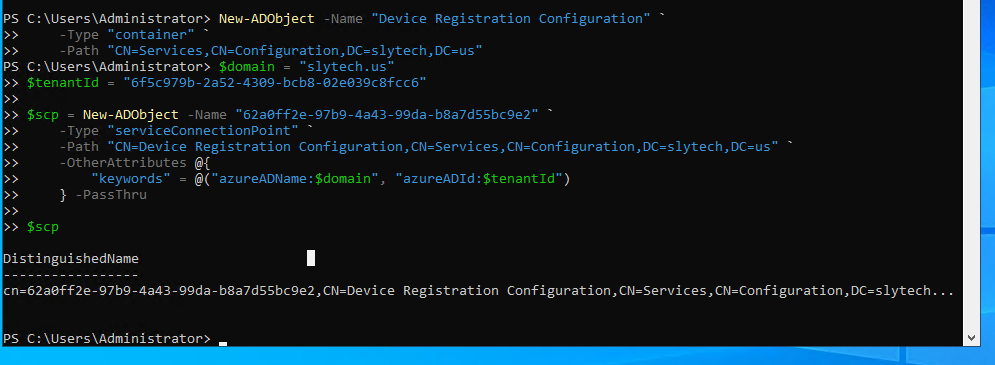
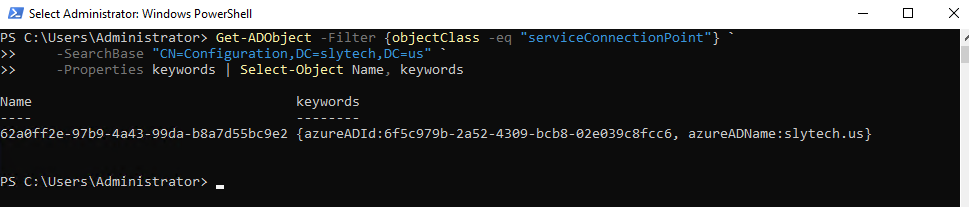
The fix was running the Entra Connect configuration wizard again, specifically the Configure hybrid Microsoft Entra ID join option under Device options. That wizard creates the missing DRS object and configures the SCP with the right tenant name (slytechlab.onmicrosoft.com, not the custom domain).
The SCP also needed explicit read permissions for Authenticated Users. Without it, WIN11’s computer account couldn’t read the tenant configuration even though the object existed.
$scpDN = "CN=62a0ff2e-97b9-4a43-99da-b8a7d55bc9e2,CN=Device Registration Configuration,CN=Services,CN=Configuration,DC=slytech,DC=us"
$acl = Get-Acl -Path "AD:$scpDN"
$sid = New-Object System.Security.Principal.SecurityIdentifier("S-1-5-11")
$identity = $sid.Translate([System.Security.Principal.NTAccount])
$adRights = [System.DirectoryServices.ActiveDirectoryRights]::GenericRead
$type = [System.Security.AccessControl.AccessControlType]::Allow
$inheritanceType = [System.DirectoryServices.ActiveDirectorySecurityInheritance]::None
$rule = New-Object System.DirectoryServices.ActiveDirectoryAccessRule($identity, $adRights, $type, $inheritanceType)
$acl.AddAccessRule($rule)
Set-Acl -Path "AD:$scpDN" -AclObject $acl
DNS Was the Other Problem
With the SCP fixed, WIN11 still couldn’t reach dc01 by hostname. gpupdate /force was failing with network connectivity errors. The reason:
DNS Servers . . . . . . . . . . . : 2001:558:feed::1
Windows was using Comcast’s IPv6 DNS server instead of dc01. Setting the IPv4 DNS to 10.0.0.210 didn’t help because IPv6 was taking priority. Fix was disabling IPv6 on the adapter entirely:
Disable-NetAdapterBinding -Name "Ethernet" -ComponentID ms_tcpip6
After that, ping dc01.slytech.us resolved immediately and gpupdate /force completed successfully. With DNS resolving correctly, the GPO could reach the DC and the scheduled task had a valid path to complete the registration.
This is a common homelab issue when the ISP assigns an IPv6 DNS server via DHCP and internal DNS is IPv4 only. The symptom points you toward firewall rules. The actual problem is DNS.
Getting the Hybrid Join to Actually Work
With DNS fixed and the SCP configured correctly, triggered the Automatic-Device-Join scheduled task:
$sched = New-Object -ComObject Schedule.Service
$sched.Connect()
$task = $sched.GetFolder("\Microsoft\Windows\Workplace Join").GetTask("Automatic-Device-Join")
$task.Run($null)
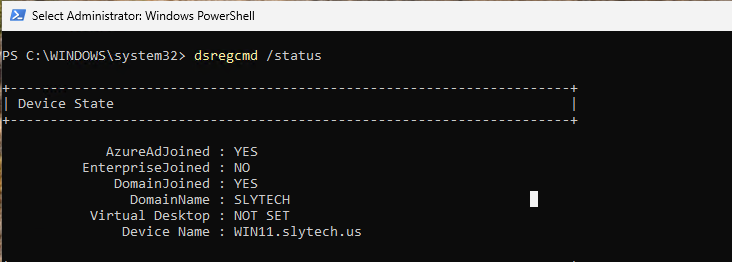
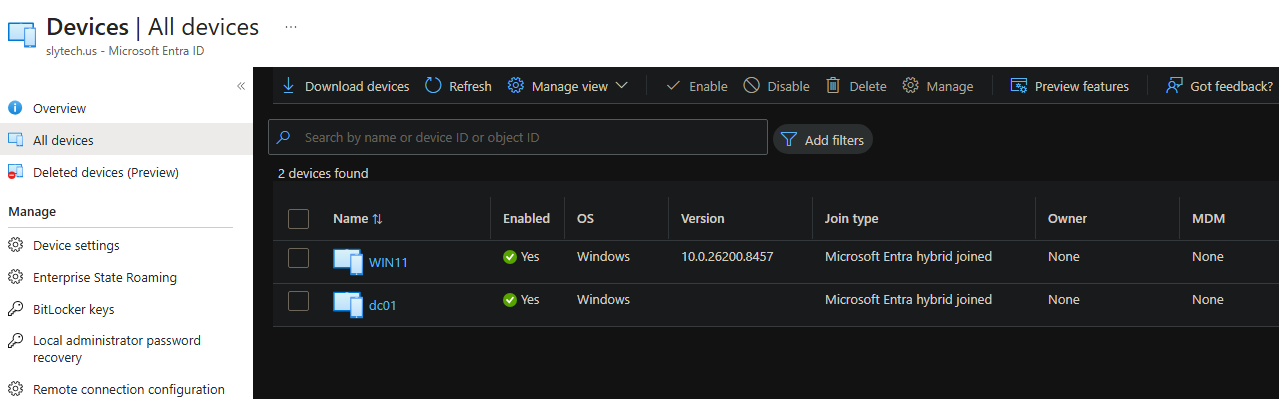
The last piece: a licensed user needed to be logged into WIN11. The hybrid join process needs an Entra ID licensed account on the machine to complete the cloud registration. Logged in as mwebb with Microsoft 365 Business Premium assigned and ran the task again.
AzureAdJoined : YES
DomainJoined  : YES
Intune Enrollment
With hybrid join in place, MDM auto-enrollment went through a GPO:
Computer Configuration
→ Policies → Administrative Templates
→ Windows Components → MDM
→ Enable automatic MDM enrollment using default Azure AD credentials
→ Enabled, Device Credential
Also required setting MDM user scope to All in the Intune portal under Devices > Enrollment > Automatic Enrollment. Without that, the enrollment request gets rejected even if the GPO fires correctly.
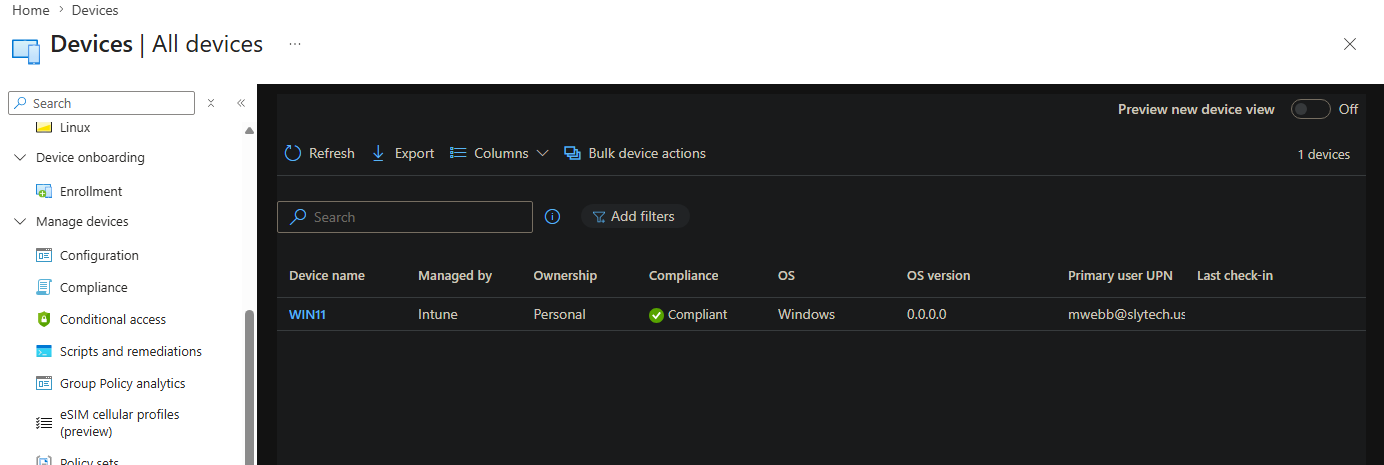
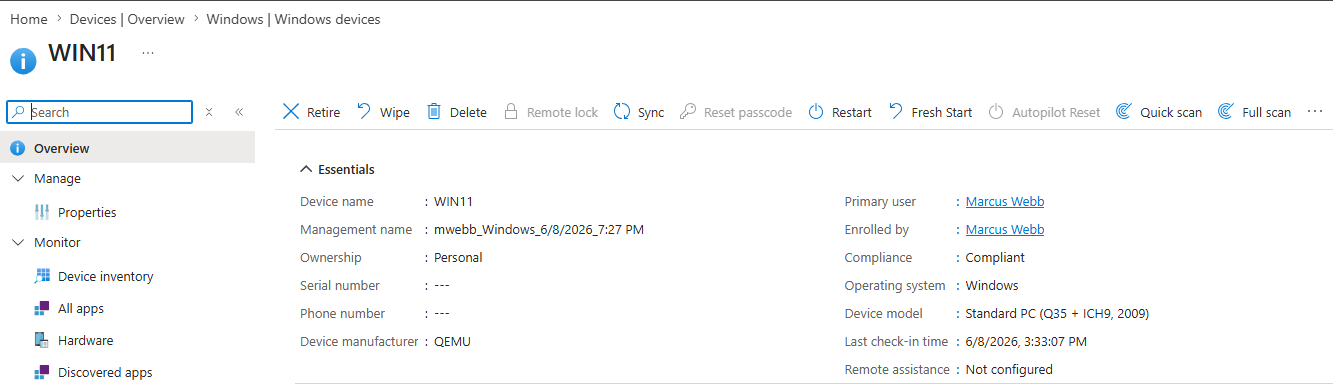
WIN11 showed up in Intune within a few minutes, Compliant status, mwebb@slytech.us as primary user.
Compliance and Configuration Policies
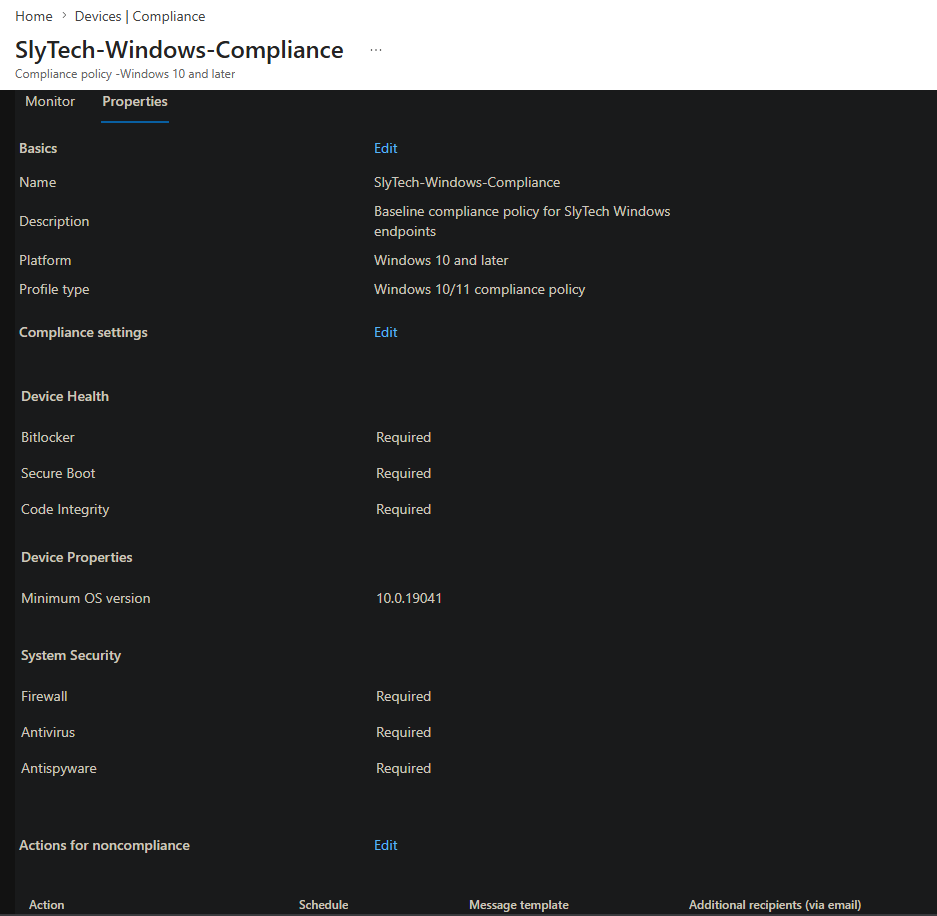
Created a baseline compliance policy named SlyTech-Windows-Compliance:
- BitLocker required
- Secure Boot required
- Code Integrity required
- Firewall required
- Antivirus and Antispyware required
- Minimum OS version: 10.0.19041
- Noncompliance action: mark immediately
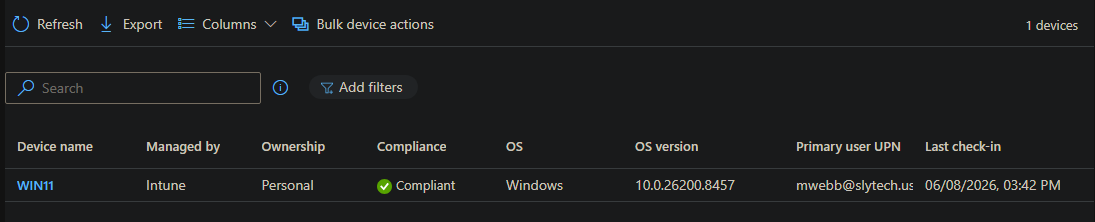
WIN11 came back Compliant. That result is meaningful because it means BitLocker is enabled, Secure Boot is on, and Defender is running. Not just assumed, verified.
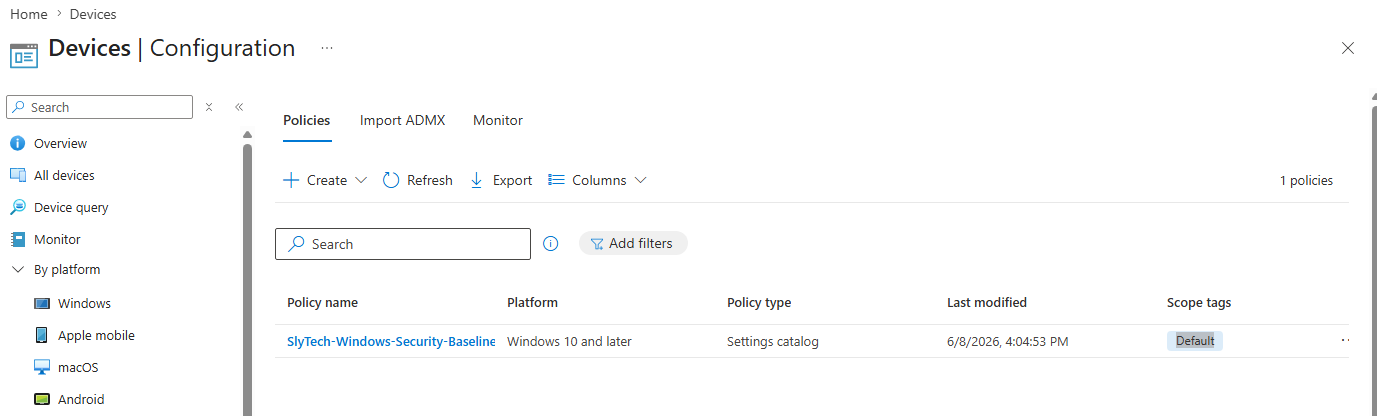
A configuration profile named SlyTech-Windows-Security-Baseline was pushed via the Settings Catalog with Defender real-time monitoring enforced and BitLocker device encryption required at the policy level, not just checked for compliance.
Defender for Endpoint
Onboarding went through the Defender for Business setup wizard at security.microsoft.com. The wizard detected the existing Intune connection and offered automatic onboarding for all enrolled devices. Selected that, assigned the Security Administrator role, configured alert notifications, done.
The Defender sensor gets pushed to Intune-enrolled devices automatically without touching the endpoint directly. Verified on WIN11:
Get-Service -Name "Sense"
Status   Name    DisplayName
------   ----    -----------
Running  Sense   Windows Defender Advanced Threat Pr...

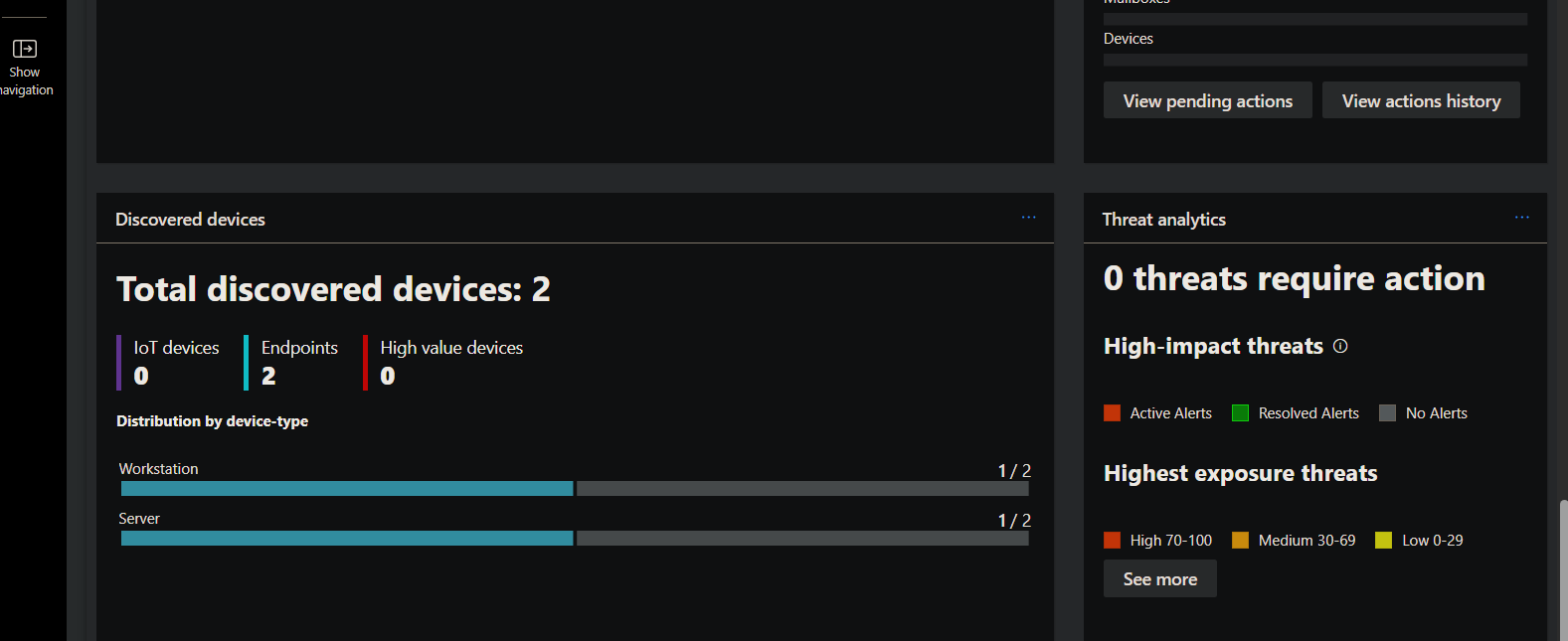
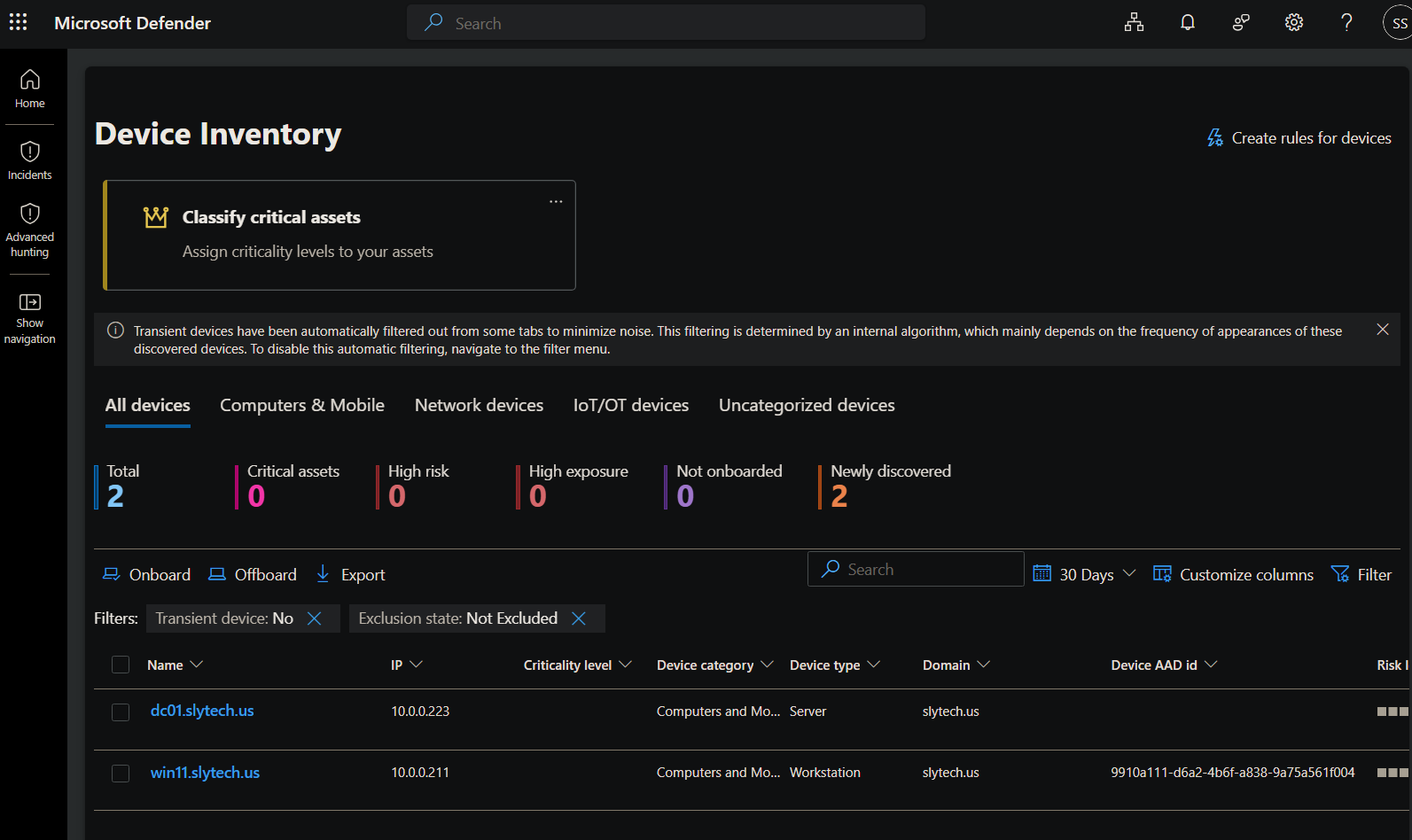
The Defender portal showed WIN11 as a fully onboarded endpoint within 30 minutes. 2 endpoints, 0 active incidents, Intune confirmed as the management tool.
Wrapping Up
The same GPO that enrolled WIN11 would enroll every domain-joined machine in the Workstations OU automatically. Scale it to 500 machines and the process doesn’t change. That’s the point of building it this way.
What’s Next
With endpoints managed and security telemetry flowing into Defender, the next step is governance. Project 3 covers Azure Policy, Terraform, and Log Analytics Workbooks, building compliance monitoring and infrastructure-as-code on top of everything running in the slytech.us environment.