Building a Hybrid Identity Environment with Active Directory and Microsoft Entra ID
Extending the slytech.us on-prem Active Directory into Microsoft Entra ID using Entra Connect to build a hybrid identity foundation for Intune, Conditional Access, and Defender for Endpoint.
The AD environment was solid. Tiered admin accounts, JIT elevation, PAM groups, GPO-enforced access controls, the whole thing. The homelab exists for everything production can’t accommodate, breaking things, rebuilding them, testing configurations without a change window or a ticket. I extended the slytech.us domain into Microsoft Entra ID using Entra Connect, turning a standalone Active Directory into a hybrid identity environment built to be torn apart and rebuilt freely.
This is the foundation everything else in the cloud series builds on. Intune enrollment, Defender for Endpoint, Conditional Access policies, all of it assumes on-prem identities are already in Entra ID.
Why Entra Connect over Cloud Sync
Microsoft offers two sync options: Entra Connect Sync, an on-premises agent on the DC, and Entra Cloud Sync, a lightweight cloud-managed agent. Cloud Sync is where Microsoft is pushing new deployments. Connect Sync made more sense here given the real OU structure, PAM tier groups, and service accounts already built across the IAM and PAM labs. Full attribute control and OU scoping mattered more than a lighter footprint.
The Environment Going In
Everything from the IAM and PAM labs was still in place:
dc01: Windows Server 2025, AD DS, DNS, slytech.us domainfs01: Windows Server 2025, department file sharesWS01/WS02: Windows 11, domain-joined workstations- Users: mwebb, rholt, cnovak, jblake, plus tiered admin accounts and service accounts
- OU structure: SLYTECH > Users > Sales/IT/Disabled, Admin-Accounts > Tier0/Tier1/Tier2, Groups > PAM
Nothing got torn down. Entra Connect syncs what’s already there without touching the on-prem structure.
Standing Up the M365 Tenant
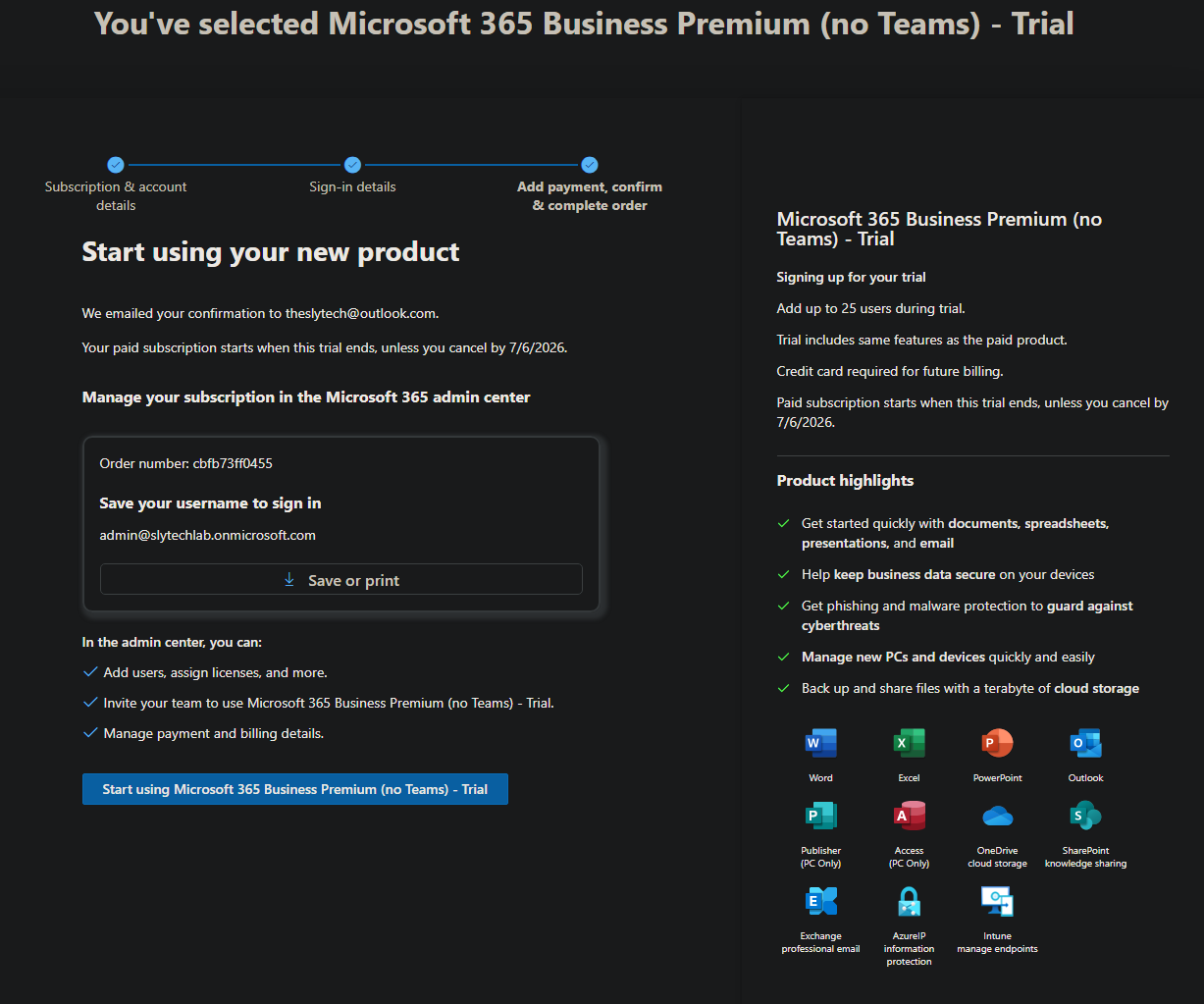
The free Microsoft 365 Developer Program sandbox requires an active Visual Studio subscription since Microsoft tightened eligibility in 2024. The portal returned “you don’t qualify” so the Microsoft 365 Business Premium 30-day trial was the practical alternative. One user, no charge until day 30, Entra ID, Intune, and Defender for Endpoint included.
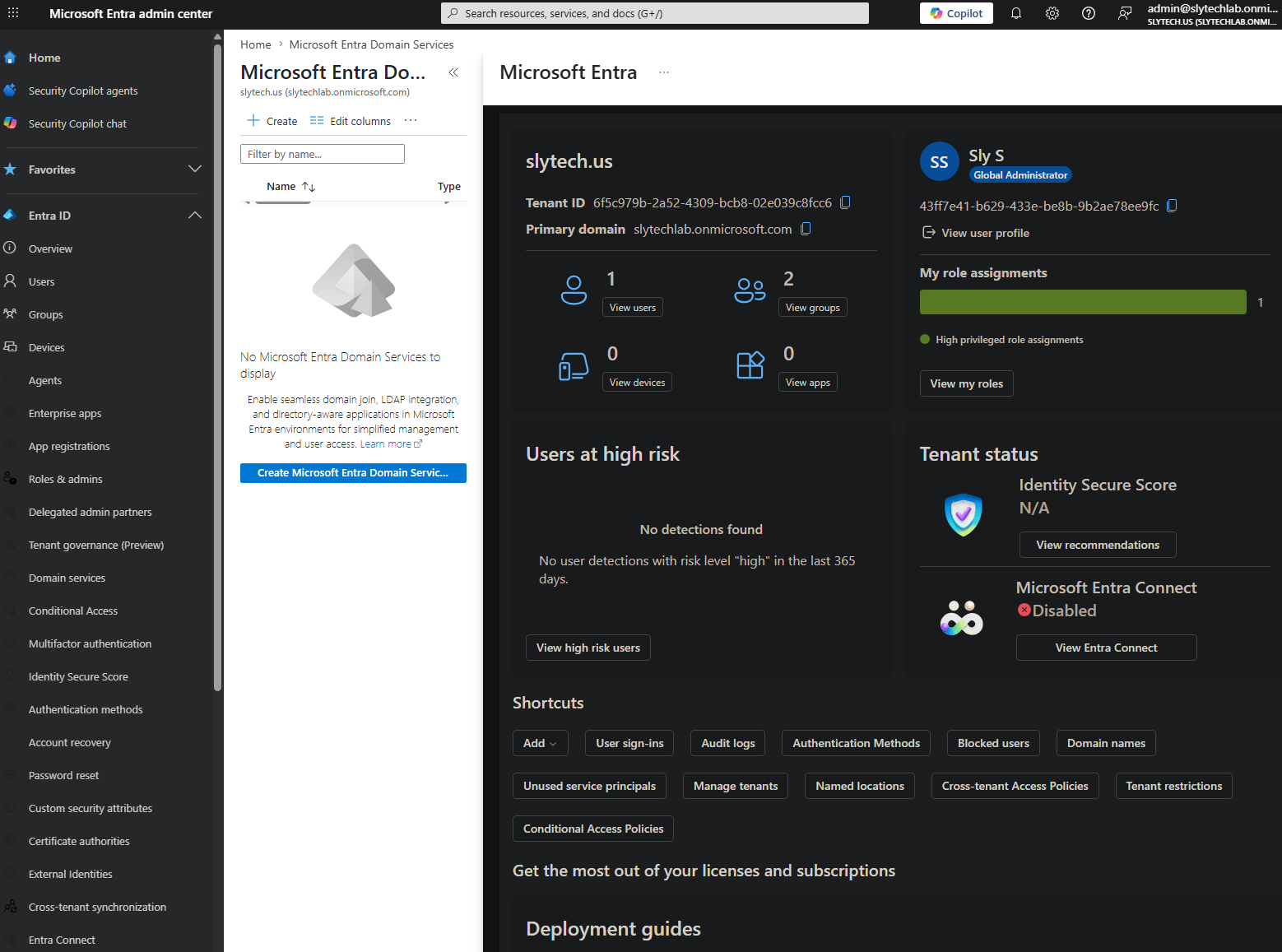
The tenant landed on slytechlab.onmicrosoft.com since slytech.onmicrosoft.com was already taken from an earlier attempt. The onmicrosoft.com domain is just the backend tenant identifier and never appears in user UPNs once the custom domain is verified.
Verifying the Custom Domain
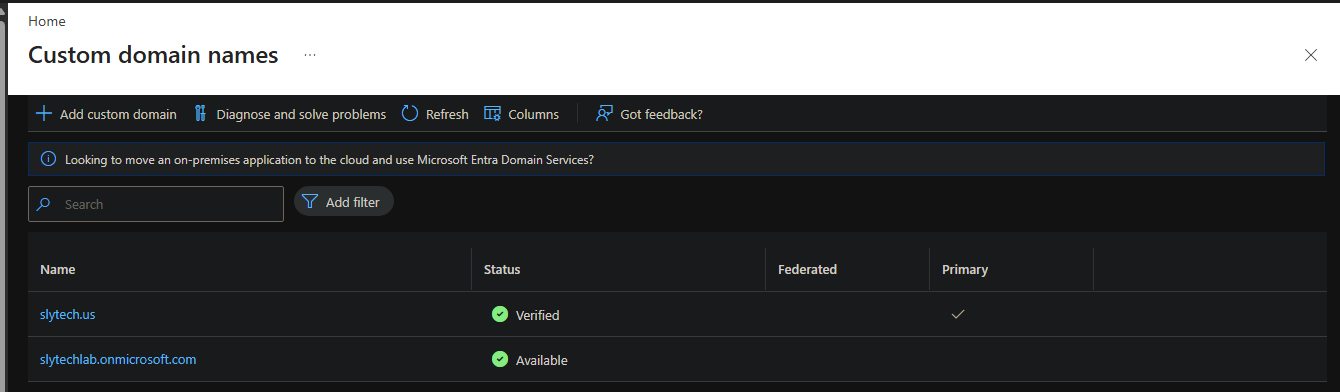
Before Entra Connect could sync, slytech.us needed to be a verified domain in the tenant. Standard process: add the domain, get a TXT record, add it to public DNS, click verify.
Worth noting: slytech.us is both an internal AD domain and a public domain in Cloudflare. Entra ID verifies against public DNS, not the internal Technitium resolver. The TXT record goes in Cloudflare, not Technitium.
Type: TXT
Name: @
Content: MS=ms25875625
TTL: Auto
Cloudflare propagates fast. Verification came back successful within two minutes of saving the record.
Installing Entra Connect on DC01
Grabbed Entra Connect from the Entra admin center under Connect Sync. The version matters: anything below 2.4.18.0 fails because Microsoft deprecated MSOnline in April 2025. The portal served 2.6.3.0 so that wasn’t an issue.
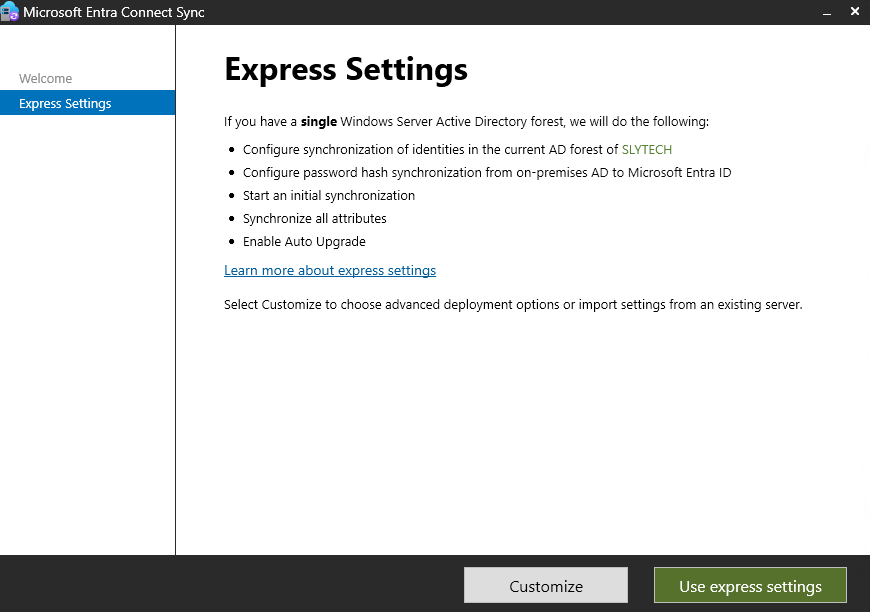
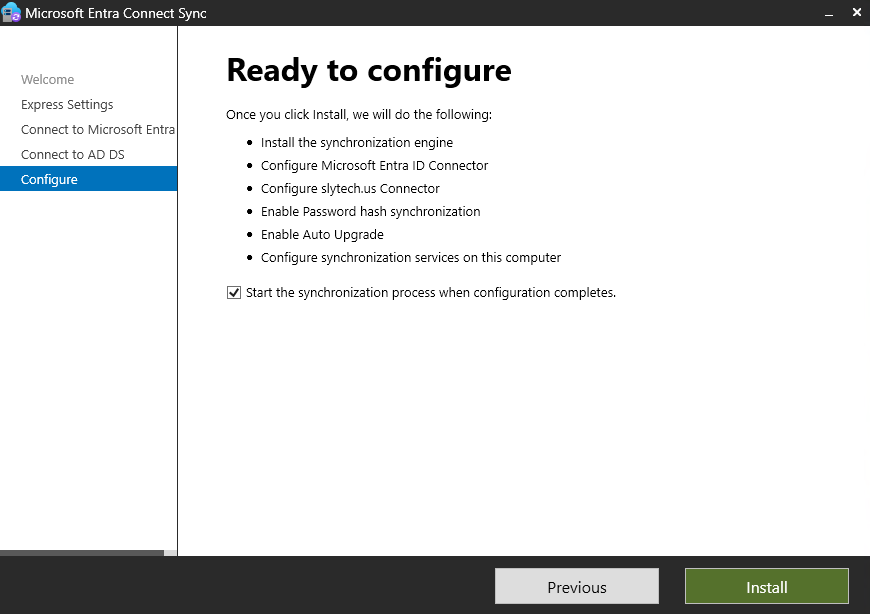
Express Settings went in for a single forest lab. Password Hash Sync, 30-minute sync cycle, AD connector configured automatically.
The Gotcha That Stopped the Install
Got to the Configure screen and hit this:
AADSTS700027: The certificate used to sign the client assertion is expired.
An error occurred while initializing the slytechlab.onmicrosoft.com - AAD connector.
Spent time rotating keys, checking app registrations, re-downloading the latest installer. None of it mattered. The error message says expired certificate. The actual problem was time sync.
DC01 was syncing its clock against the local CMOS instead of an external NTP source:
Source: Local CMOS Clock
ReferenceId: 0x4C4F434C (source name: "LOCL")
OAuth token validation is sensitive to clock skew. When DC01’s clock drifts even slightly, the token Microsoft issues gets rejected because the server and client timestamps don’t agree. The error says certificate but the root cause is time. Fixed it with:
Set-Service -Name W32Time -StartupType Automatic
Start-Service -Name W32Time
w32tm /config /manualpeerlist:"time.windows.com" /syncfromflags:manual /reliable:YES /update
w32tm /resync /force
After the fix, the status showed:
Source: time.windows.com
Stratum: 4 (secondary reference - syncd by (S)NTP)
Re-ran the installer. It went through clean.
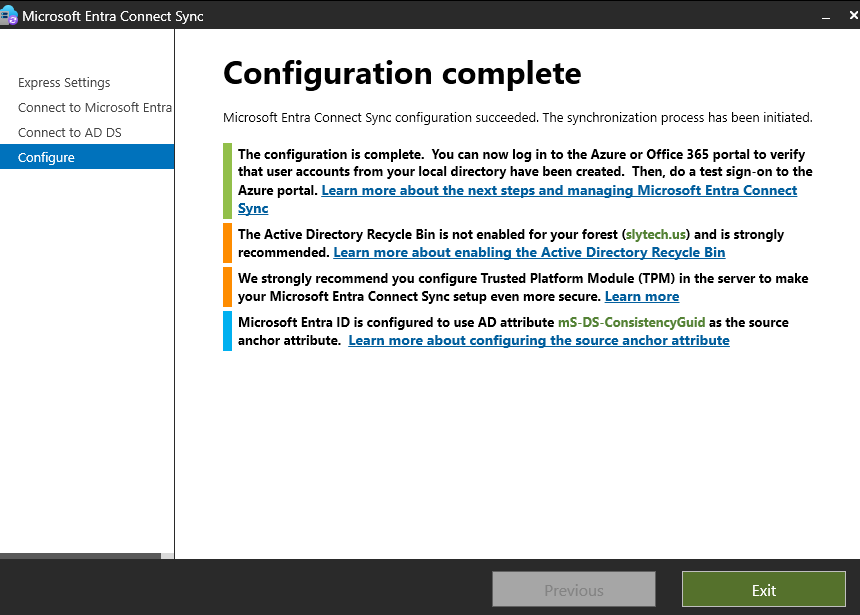
The error message is genuinely misleading. “Certificate expired” sends you toward keys and app registrations. w32tm /query /status shows the real problem immediately.
Seeing the Sync Work
First sync ran automatically after installation. Filtering Entra ID Users by On-premises sync enabled == Yes showed all 18 accounts:
- mwebb, rholt, cnovak, jblake with
@slytech.usUPNs - All tiered admin accounts: mwebb.admin.t0, mwebb.admin.t1, rholt.admin.t0, rholt.admin.t1, cnovak.admin.t2
- Service accounts: svc.backup, svc.legacy
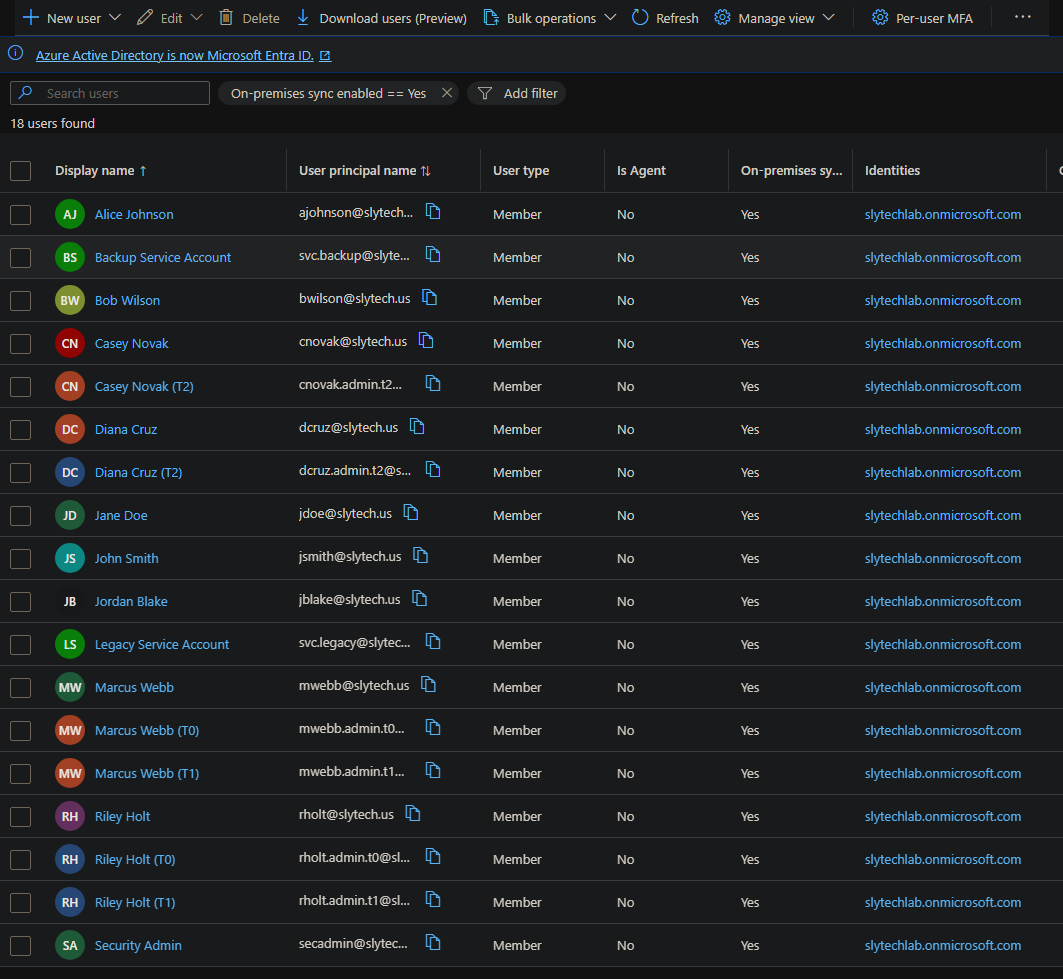
The PAM structure came across intact. Nothing to clean up in the cloud because the source was already clean.
Validation
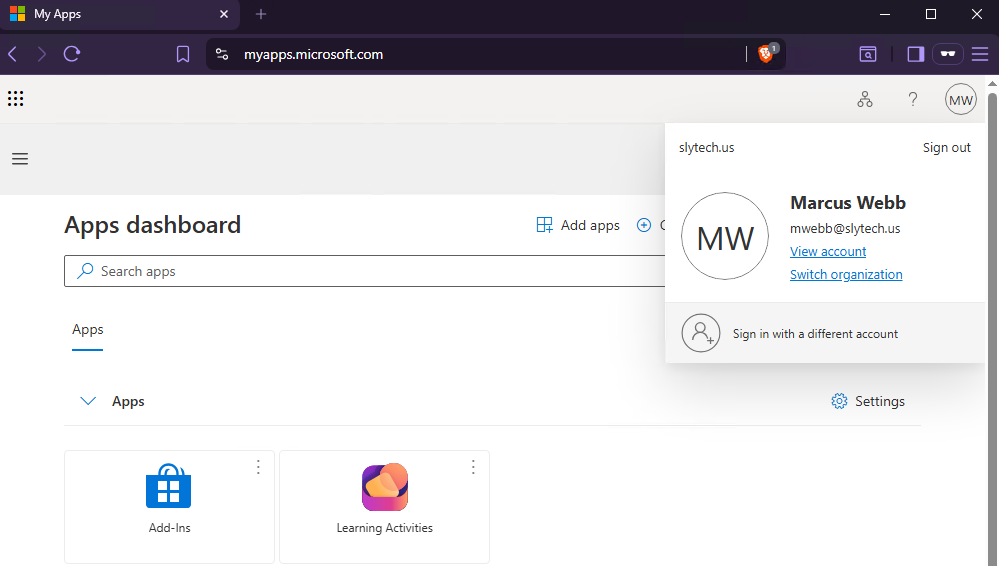
Signed into myapps.microsoft.com as mwebb@slytech.us using Marcus Webb’s AD password. Authenticated. Same credentials, on-prem and cloud, no separate account to manage.
What’s Next
With hybrid identity in place, the next step is device management. WS01 and WS02 are domain-joined but not cloud-managed. Project 2 enrolls them into Microsoft Intune, applies compliance policies, and integrates Defender for Endpoint, turning the existing Windows 11 workstations into managed cloud endpoints.