Automating Identity Lifecycle: HR-Driven Onboarding and Offboarding with PowerShell and Microsoft Graph
Automating new hire onboarding and employee offboarding across Active Directory and Microsoft 365 using PowerShell, Microsoft Graph, and a SharePoint request form, turning a manual checklist into a hands-off pipeline.
Onboarding a new hire in a hybrid environment is the same manual sequence every time. Create the AD user, place them in the right OU, add the groups, wait for the sync, set the usage location, assign the license, email the manager the password. Offboarding is the same thing in reverse, and it’s the one nobody remembers to finish. The account sits enabled for weeks after someone leaves because disabling it was step six on a checklist that got interrupted at step three.
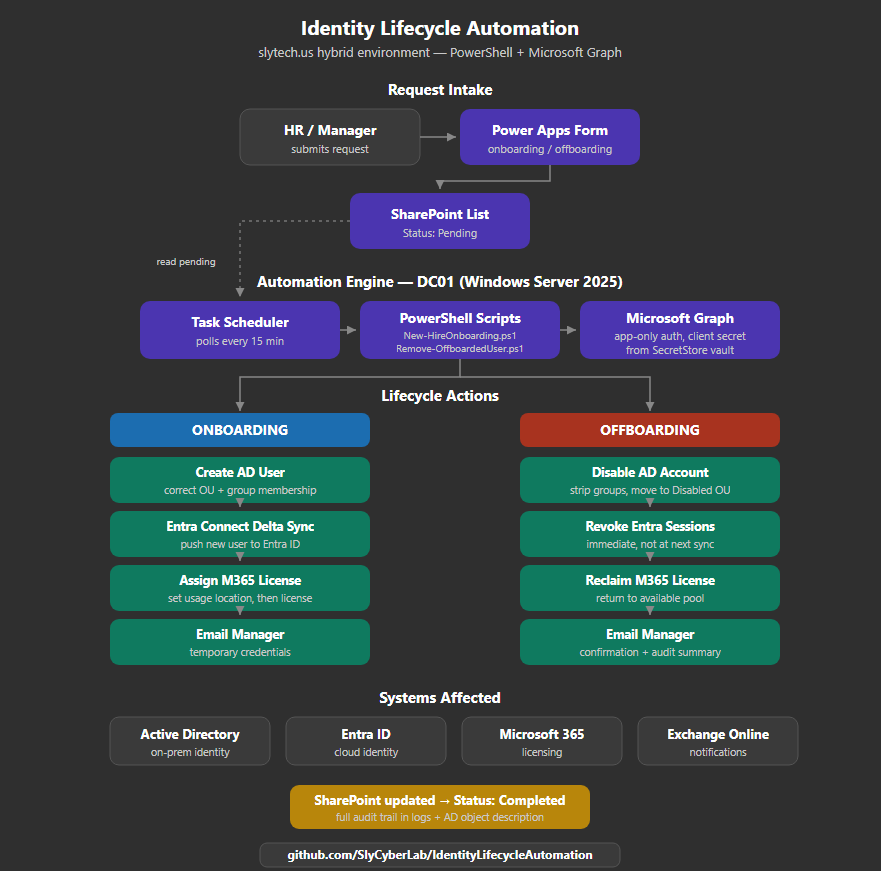
That gap is a real security problem and a real time sink. So I built it into a pipeline. A manager or HR fills out a SharePoint form, a scheduled PowerShell job picks it up, and the whole sequence runs against Active Directory and Microsoft Graph with no human in the loop. This is the project that lives at github.com/SlyCyberLab/IdentityLifecycleAutomation, built on top of the hybrid identity foundation from earlier in this series.
Why SharePoint as the Front Door
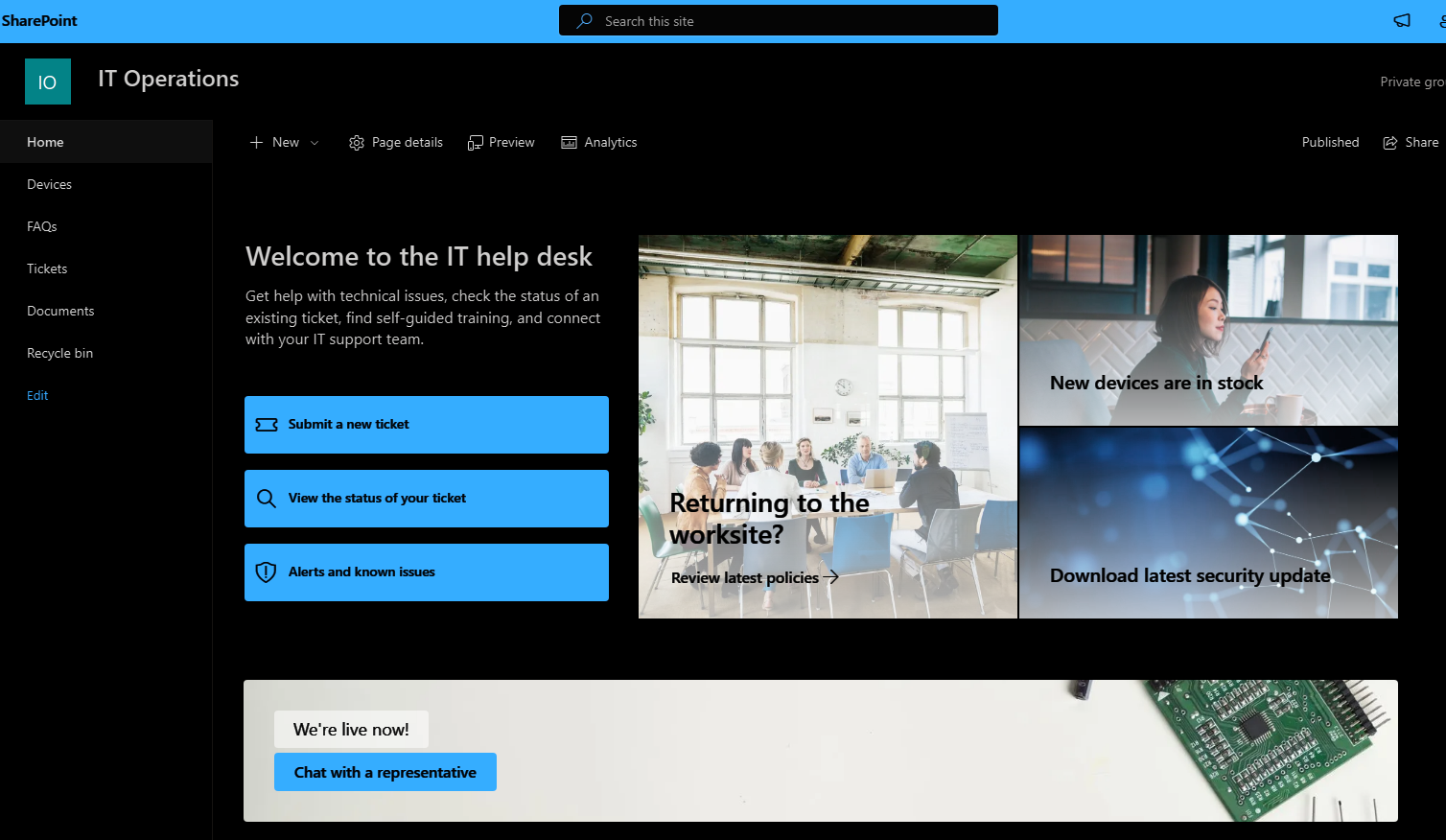
The trigger had to be something a non-technical manager would actually use. PowerShell parameters were never going to be that. A SharePoint list with a Power Apps form on top gives HR a clean web form, stores every request as a list item with a status field, and exposes all of it through Microsoft Graph so the automation can read pending requests and write back results. No extra database, no extra licensing, it is already in the M365 tenant.
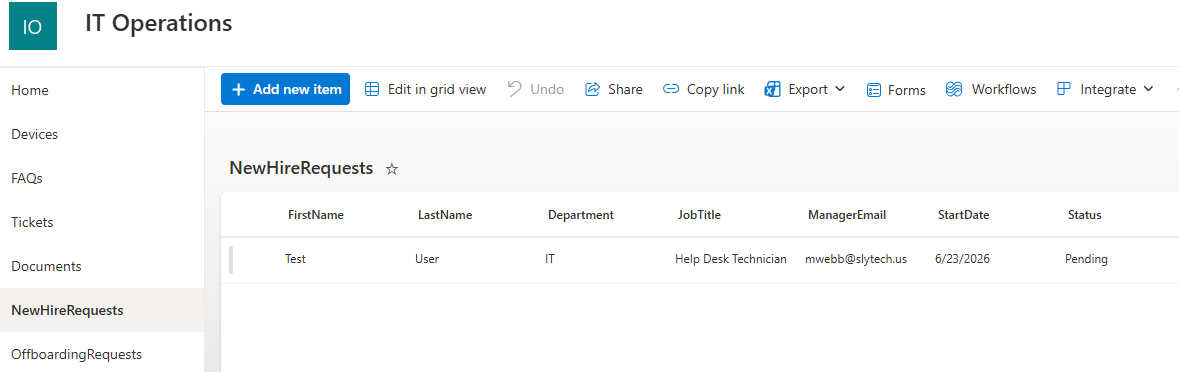
I built two lists on the IT site: one for new hire requests, one for offboarding.
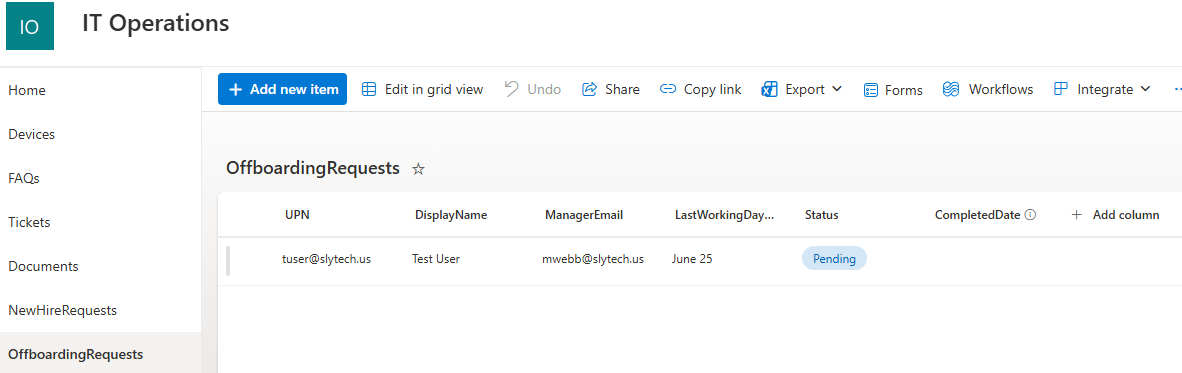
The columns on each list map directly to what the scripts need. The new hire list captures first name, last name, department, job title, manager email, and start date. The offboarding list captures UPN, display name, manager email, and last working day. Both carry a Status field that drives the whole workflow: Pending, Completed, or Failed.


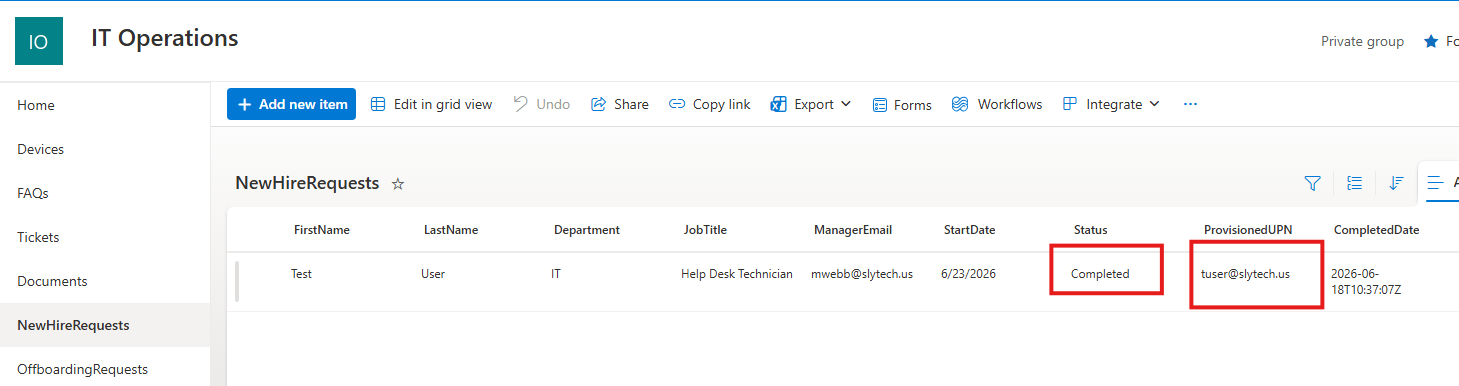
Power Apps auto-generates a form from the list, and after a bit of cleanup it became something I would actually hand to a manager.
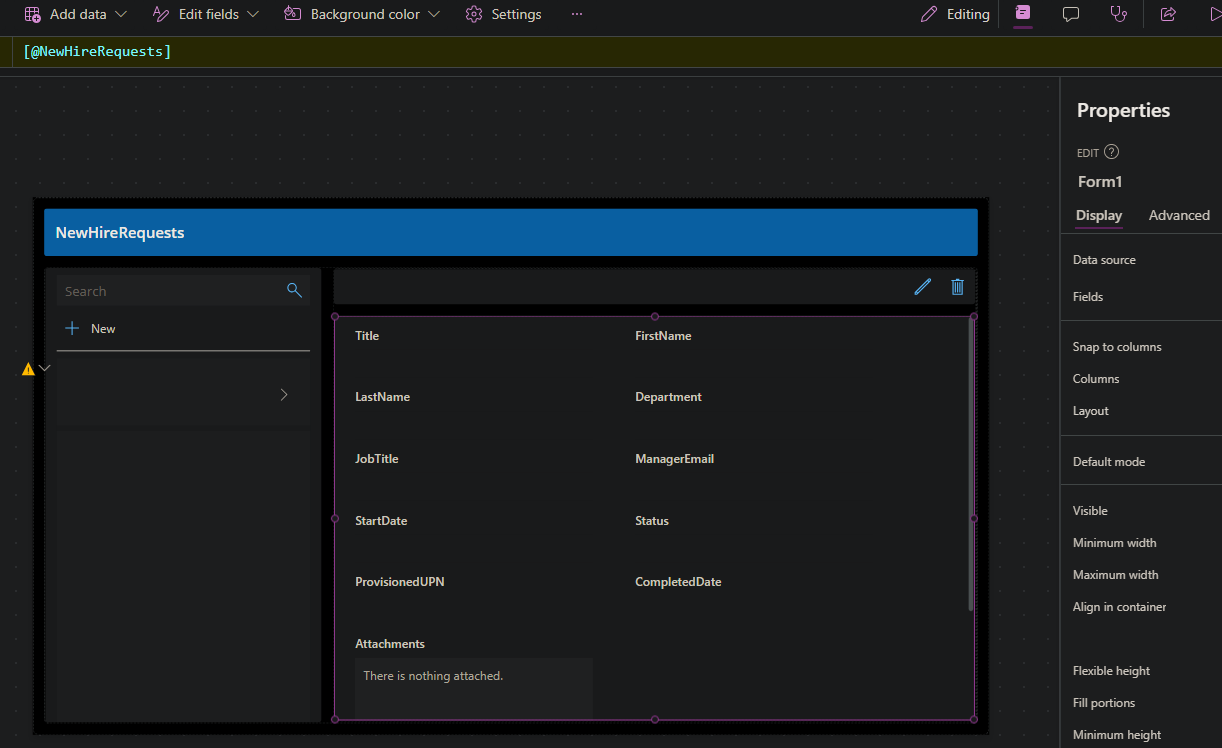
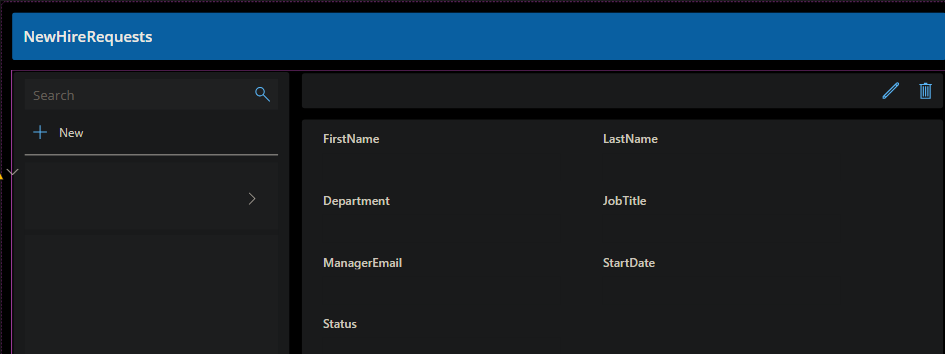
A test request submitted through the form lands in the list as a Pending item, which is exactly what the automation polls for.

App Registration and Unattended Auth
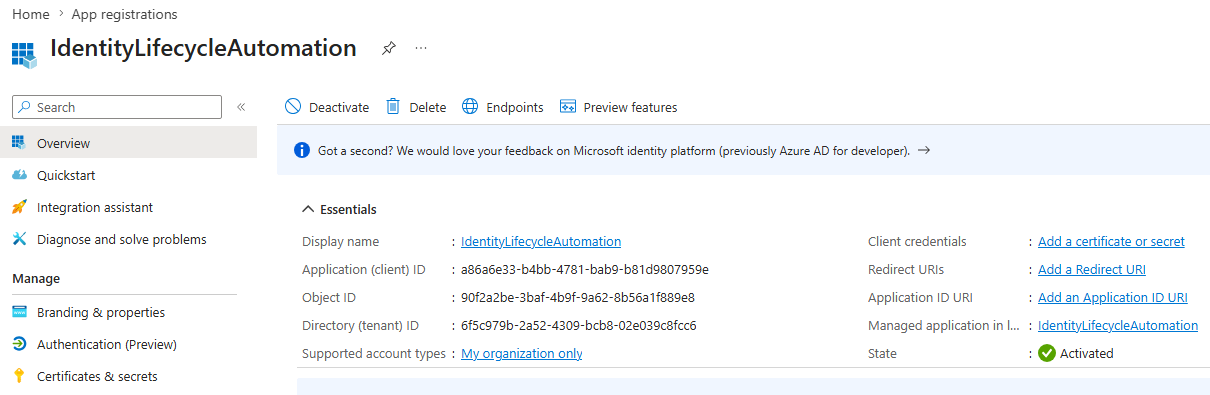
A scheduled job cannot sign in interactively. It needs app-only authentication, which means an Entra app registration with a client secret and the right Graph permissions. I registered the app, granted application permissions for User.ReadWrite.All, Directory.ReadWrite.All, Sites.ReadWrite.All, Mail.Send, and Organization.Read.All, then created a client secret.

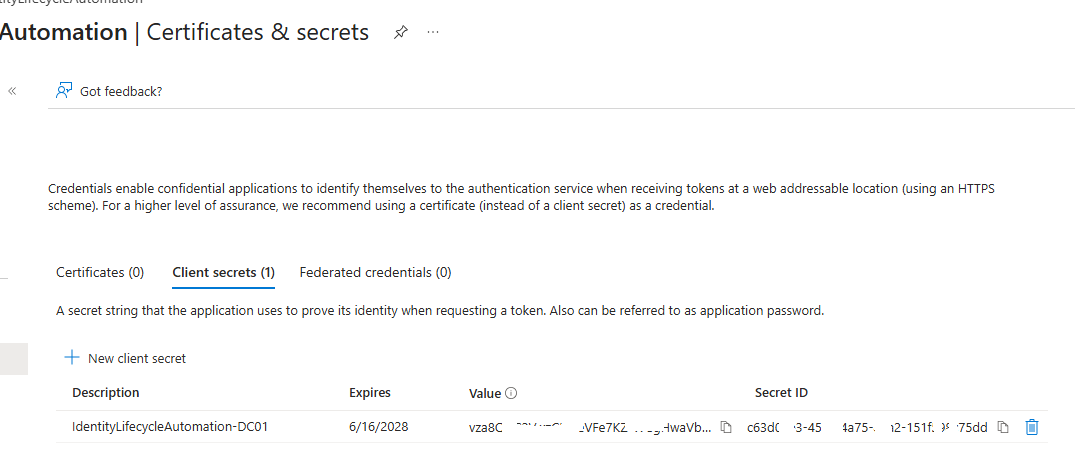
The secret does not get hardcoded. It lives in the SecretStore vault on DC01, and the script pulls it at runtime with Get-Secret. This is also where the first real lesson came from, but I will get to that.
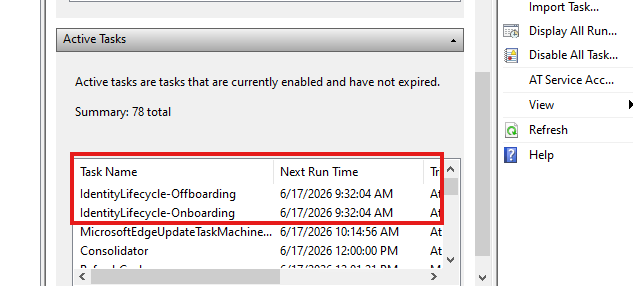
Both scripts run as scheduled tasks on DC01, polling every fifteen minutes.
The Onboarding Pipeline
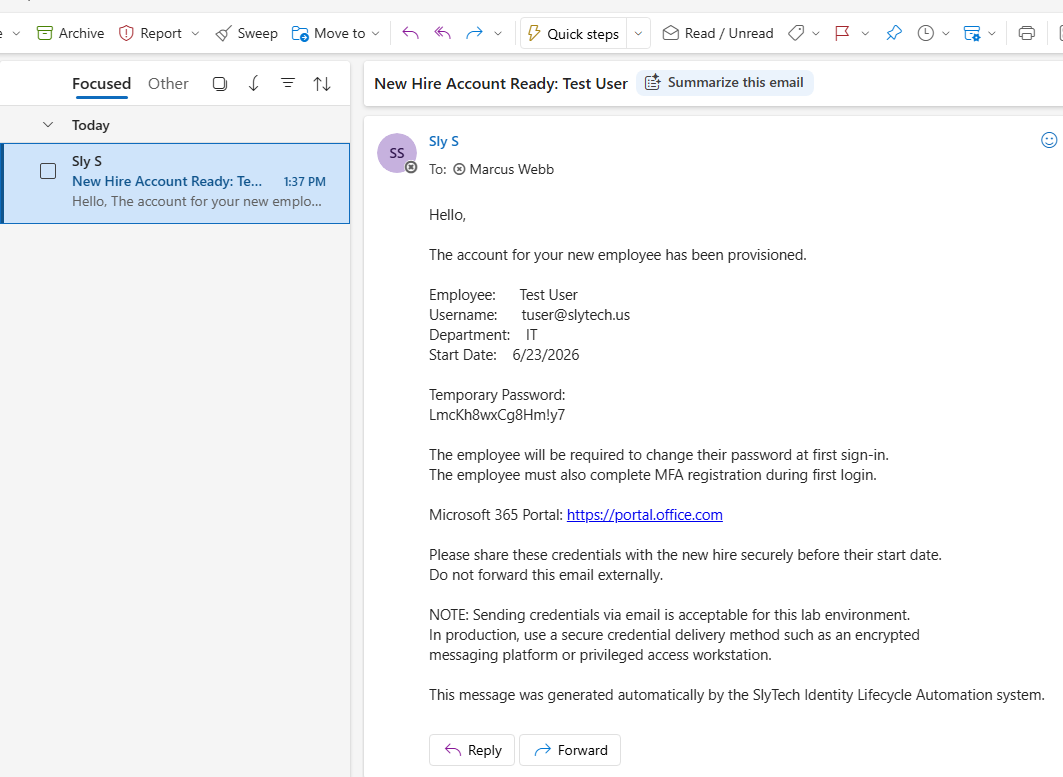
The onboarding script does seven things in order: read pending requests from SharePoint, create the AD user in the department’s OU with the right group memberships, trigger an Entra Connect delta sync, wait for the user to appear in Entra, set the usage location, assign the M365 license, and email the manager the temporary credentials. Then it writes the request back to Completed.
Getting it to run clean end to end took longer than getting the logic right, and that is the honest part of this story. The list of things that broke is in the lessons section, but the short version is that every assumption I made about the Microsoft Graph PowerShell module being predictable was wrong.
When it finally ran clean, it was fast. A brand new AD object to a fully licensed M365 user with the manager notified, in under three minutes of real work, and the Entra sync confirmed in about 36 seconds.
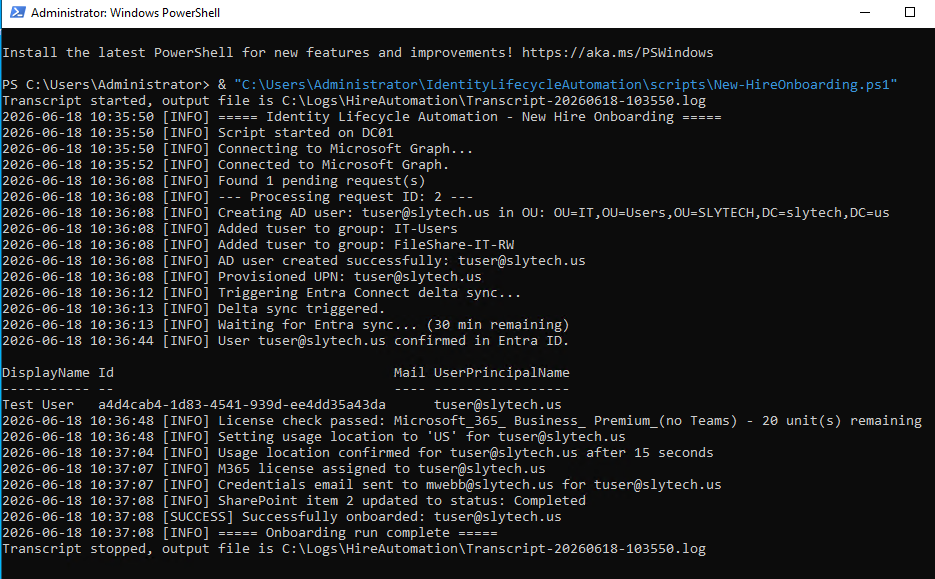
The SharePoint request flips to Completed and the provisioned UPN gets written back to the list item.
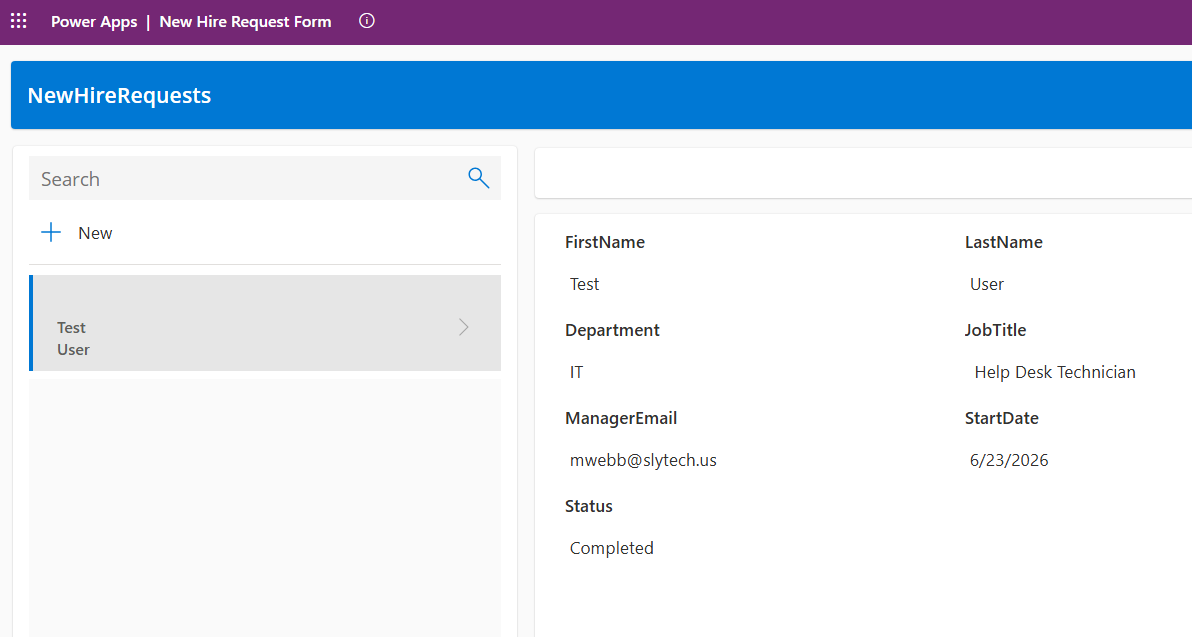
And the manager gets the credentials email, routed here to Marcus Webb’s mailbox so I could verify delivery end to end.
The Offboarding Pipeline
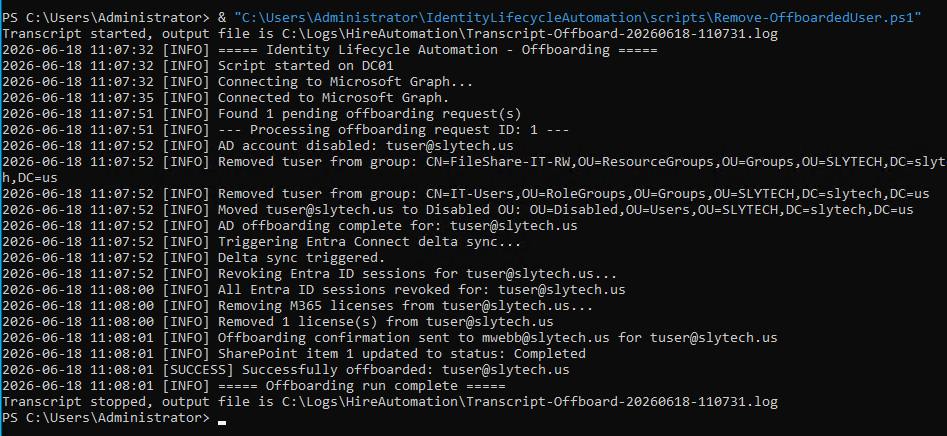
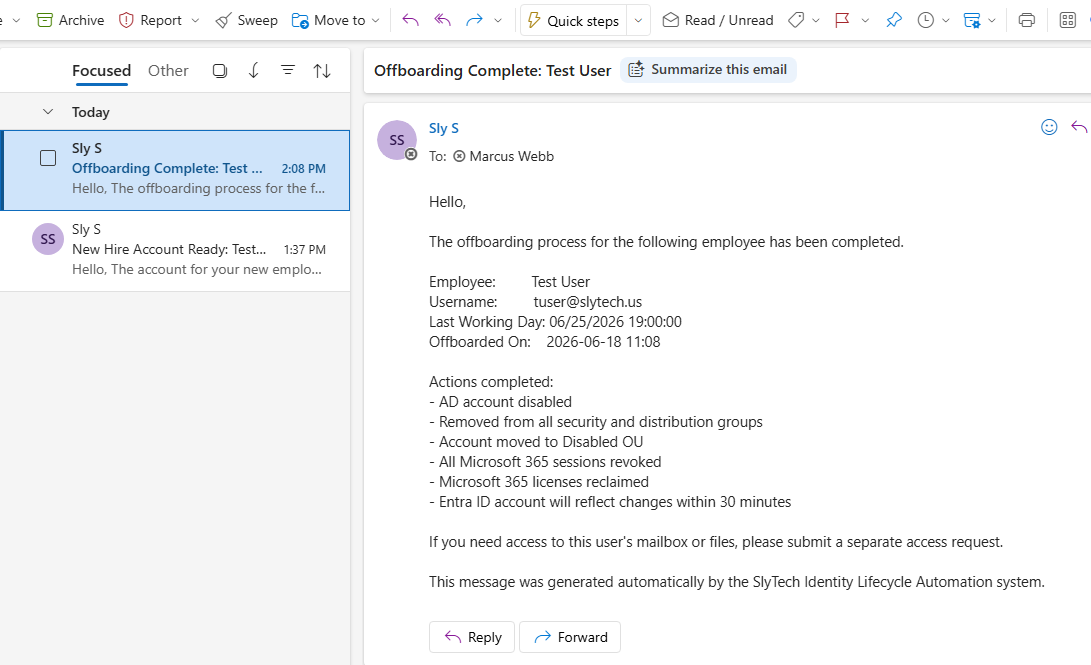
Offboarding is the mirror image and the more security-relevant half. The script disables the AD account, strips every group membership, moves the object to the Disabled OU, stamps the description with an offboarding date for the audit trail, triggers a sync, revokes all active Entra sessions immediately, reclaims the M365 license, and emails the manager a confirmation of everything that was done.
Here is the thing worth noting: the offboarding script worked on the first run. Not because offboarding is simpler, but because every painful lesson from onboarding was already baked into it before I ever executed it. The auth pattern, the way to read list items, the field handling, all of it carried over. The first script was the tuition. The second one was free.
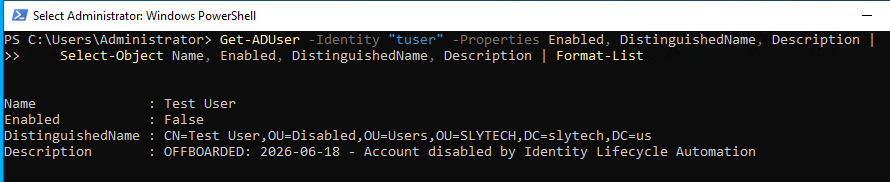
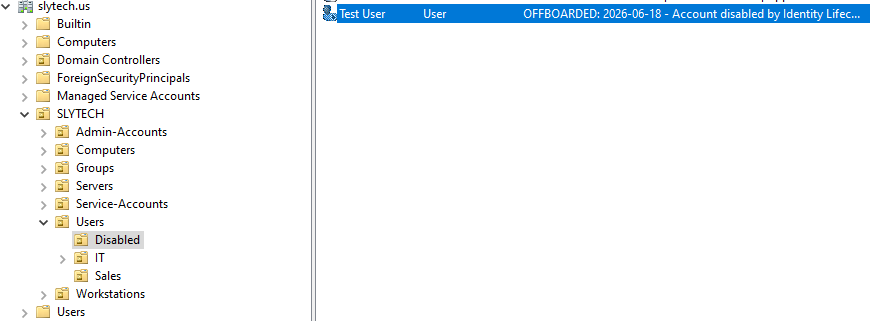
The account ends up disabled, moved to the Disabled OU, and stamped with the offboarding date in its description.
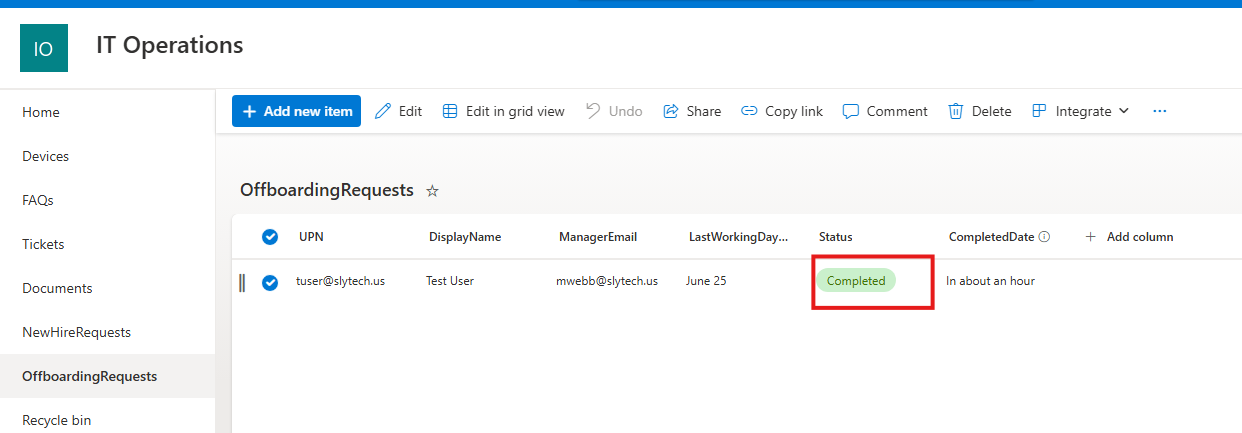
The request flips to Completed, and the manager gets the confirmation email listing every action taken.
Lessons Learned
This project taught me more through its failures than its successes. The ones worth writing down:
- WAM breaks unattended auth. Passing the client secret as a
PSCredentialvia-ClientSecretCredentialprevented Graph from triggering interactive sign-in. - SecretStore is interactive by default. Scheduled jobs require
Authentication NoneandInteraction Nonefor silent access. - Graph SDK wrappers are not always reliable.
Get-MgSiteListItemreturned incomplete data, while direct Graph API calls worked consistently. .Countis not always a row count. Wrapping results in@(...)avoids misleading counts when only one object is returned.- Licensing depends on usage location. The script waits for Entra to confirm the location update before assigning licenses.
- Function output can become arrays unexpectedly. Explicit string casting and controlled variable scope eliminated inconsistent returns.
The most dangerous account in a company is often the one nobody realizes still exists. A terminated employee’s account can retain access to email, files, and critical systems for days after they leave because offboarding depends on a manual process that was never completed.
In an enterprise context, automating identity lifecycle management closes that gap and removes the provisioning burden for every new hire. A manager fills out a form, and account creation, access updates, and deprovisioning happen automatically with a complete audit trail. That is the difference between a checklist someone might forget and a control that runs whether anyone remembers it or not.