Spinning Up an Ubuntu Server VM on Proxmox
If you’re running Proxmox and haven’t spun up a Linux VM yet, this is probably the best place to start. Ubuntu Server is lightweight, well documented, and works perfectly as a base for almost anything you want to run in your homelab. I spun this one up on Citadel, my dedicated cybersecurity lab server, to use as a foundation for a Wazuh SIEM deployment.
Creating the VM
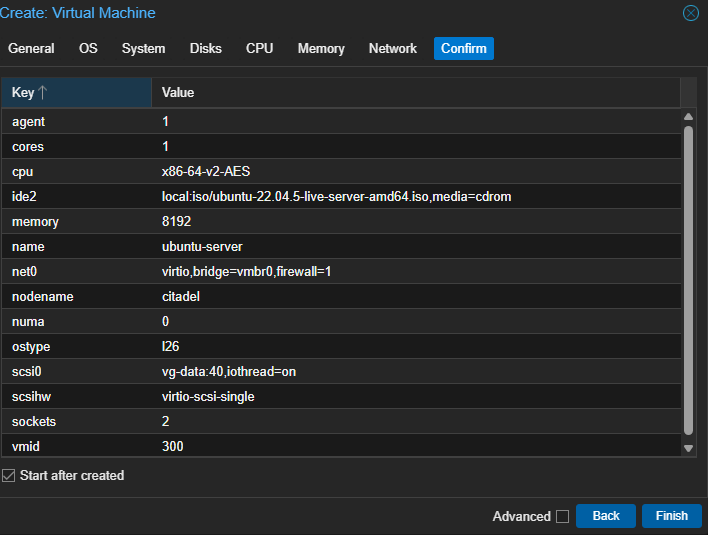
The whole process starts in the Proxmox web UI. Hit Create VM, assign it an ID, give it a name and you’re already halfway there. The settings I went with:
- Disk: 80GB on local storage
- CPU: 2 cores
- RAM: 8GB
- Network: VirtIO bridge to my local network
One thing worth knowing upfront, and I’ll come back to this when we get to Wazuh, is that disk size matters more than you think depending on what you’re planning to install. Start with more than you think you need.
Installing Ubuntu
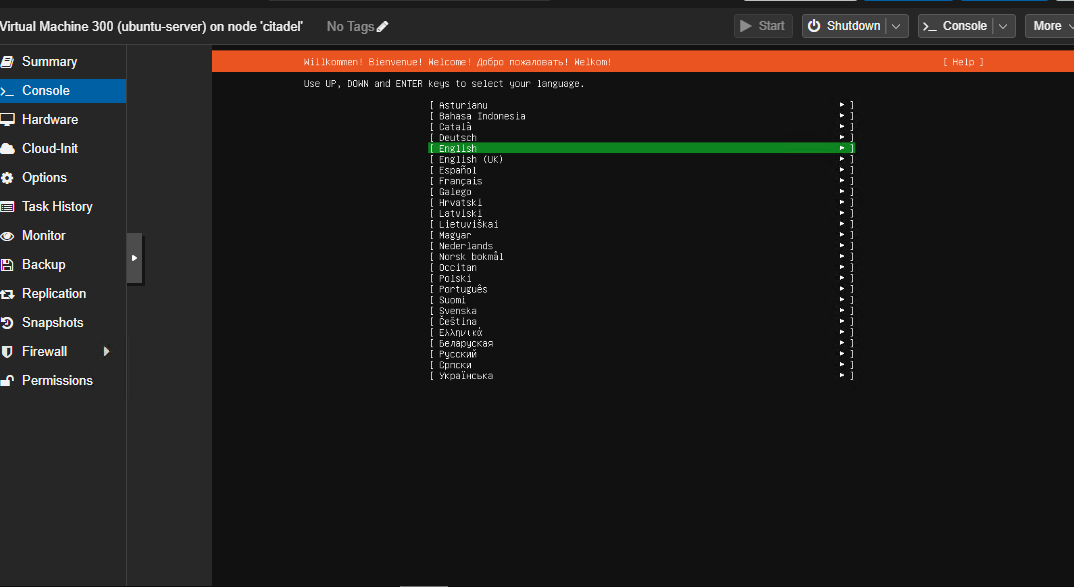
Once the VM boots from the ISO you get dropped into the Ubuntu installer. Nothing complicated here, select your language, keyboard layout, leave the network on DHCP and let it auto configure. The storage screen looks intimidating but the defaults are fine, it sets up LVM automatically which is exactly what you want for a server.
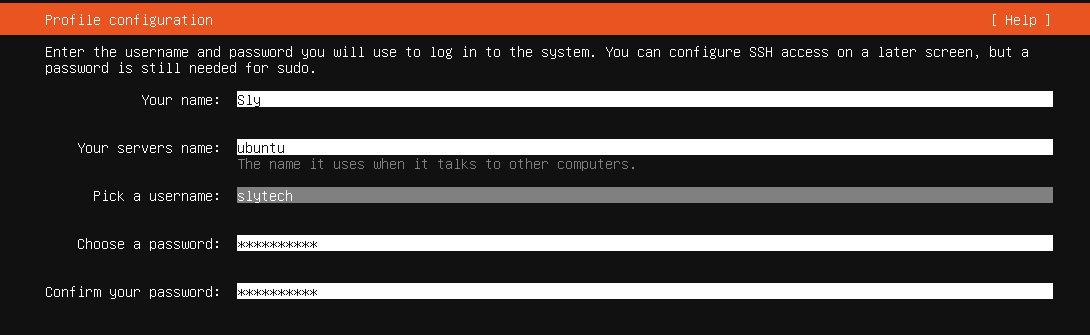
The profile setup is where you give your server an identity. I set the hostname to ubuntu, username to slytech, and made sure to enable OpenSSH during installation. That last part is important, without it you’re stuck using the Proxmox console every time instead of just SSHing in from wherever you are.
After that it runs through the installation, reboots, and you’re in.
First Login
I SSHed in from DarkShell, my Windows VM on the same network, right after the install finished. First thing you see is the system summary, memory usage, disk usage, IP address. Clean and straightforward.
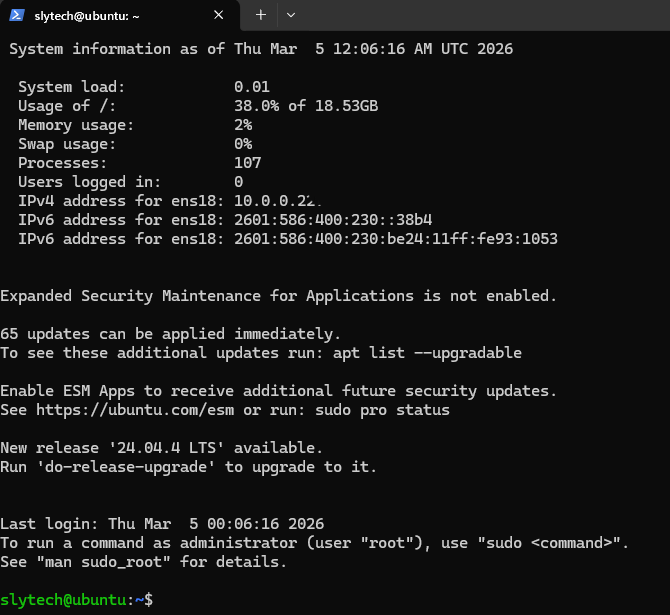
First thing I always do on a fresh Ubuntu install is run updates. There were 65 packages waiting immediately after install, which is pretty normal for a fresh ISO.
sudo apt update && sudo apt upgrade -y
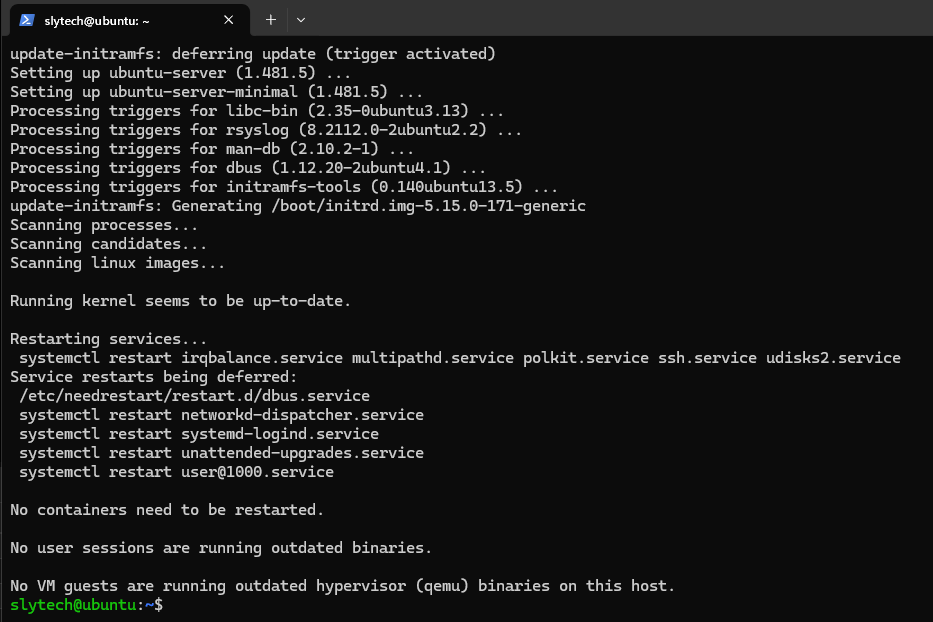
At this point you have a clean, updated Ubuntu Server VM ready for whatever you want to throw at it. In my case that was Wazuh, which I cover in the next post.